> ## Documentation Index
> Fetch the complete documentation index at: https://docs.kameleoon.com/llms.txt
> Use this file to discover all available pages before exploring further.
# Comment mode
> Use Comment mode to exchange feedback on experiment variations directly in Kameleoon, keeping team discussions organized and in context.
**Comment mode** (currently in beta) lets you and your team easily exchange feedback directly in Kameleoon. Whether you’re reviewing variations, discussing changes, or resolving issues, Comment mode streamlines collaboration by keeping conversations organized and tied to specific variations. This article walks you through how to access, use, and manage comments efficiently.
## Accessing Comment mode
To access Comment mode, click the **text bubble icon** in the mode toolbar.
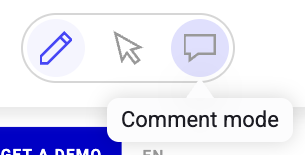
The **Comments** sidebar will open.
## Adding a comment
To add a new comment:
1. Select your desired variation in the **Variations** sidebar.
2. Click **+Add** in the **Comments** sidebar.

3. Type your comment in the text field and click **Save**.
Your comment is now visible in the **Active** comments tab of the Comments sidebar. A visual indicator noting the number of comments appears next to the relevant variation or element’s name.

## Actions in the Comments sidebar
### Editing and deleting a comment
To edit a comment:
1. Click the **three-dots menu** > **Edit comment**.
2. Edit the comment’s text.
3. Click **Save**.
To delete a comment:
* Click the **three-dots menu** > **Delete comment** > **YES**.
A comment can only be deleted during the first 15 minutes after its creation and if it does not have any replies.

### Reply to a comment
To reply to a comment:
1. Click **Add reply**.
2. Type your reply into the text field.
3. Click **Save**.
### Resolve a comment
To resolve a comment:
* Hover over the comment and click the **checkmark icon**.

The comment is now resolved. You can view resolved comments by clicking **Archived**. Click a comment’s **checkmark icon** in the Archived tab to un-resolve it.
## Settings
You have access to a variety of settings in the Comments sidebar. Click the **cog icon** to view the available settings.

You can:
* **Sort comments**
* You can sort comments newest to oldest, oldest to newest, or alphabetically by the author’s name.
* **Display in list**
* You can choose to display only comments in which you’re mentioned or all replies.