> ## Documentation Index
> Fetch the complete documentation index at: https://docs.kameleoon.com/llms.txt
> Use this file to discover all available pages before exploring further.
# Automatically rollback a feature
> Set up automatic rollback conditions to disable a rule or environment when a feature's performance drops below defined thresholds.
Automatic Rollbacks help you manage feature releases. You can set up custom rollback conditions, or "triggers," that monitor your features' performance to automatically turn off the appropriate rule or flag.
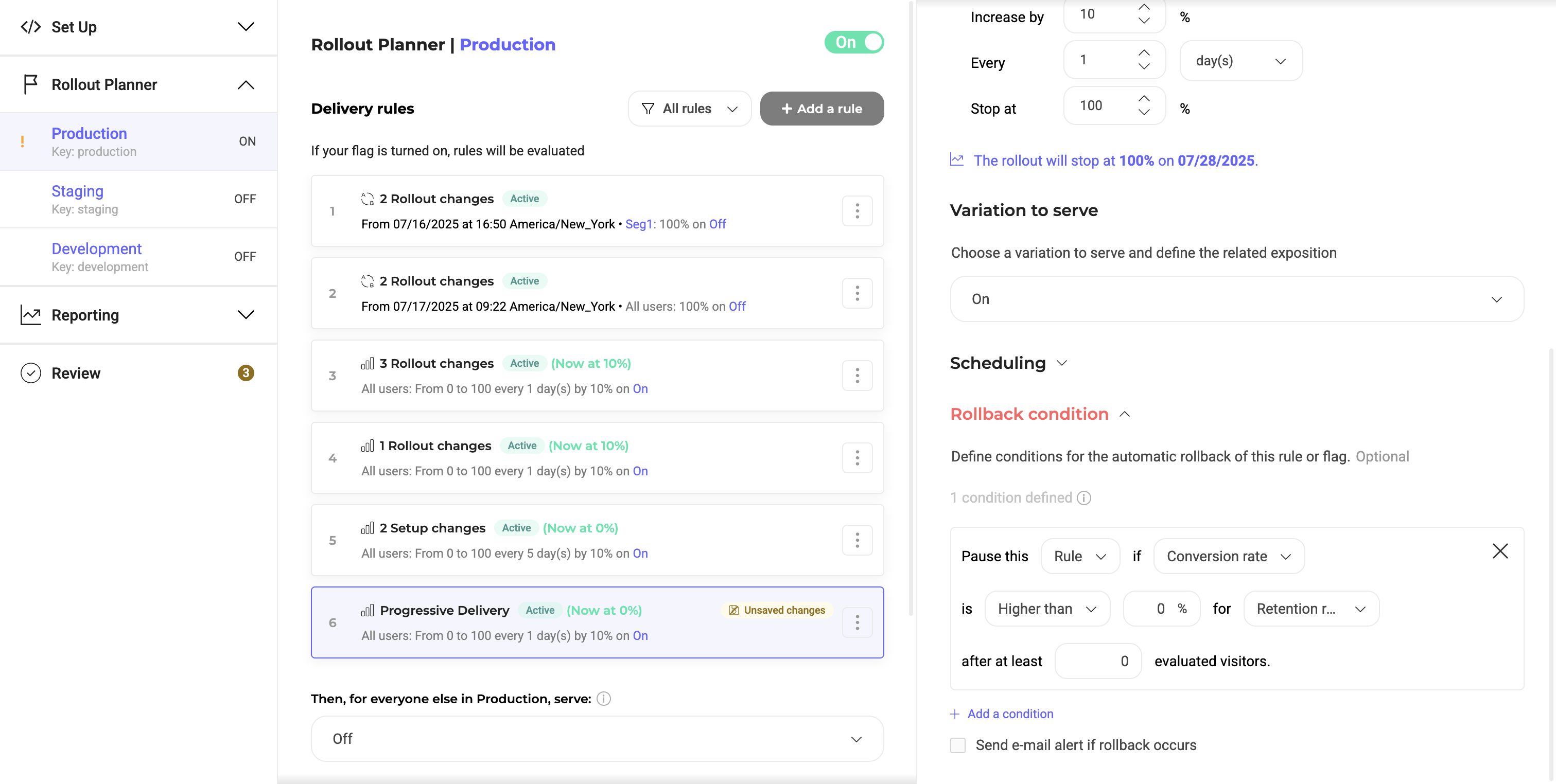
## Setting up rollback conditions
Create a new rule or click an existing one. Then, navigate to the Rollback Condition at the bottom of the edit pane for your desired rule. Here, add a new condition and fill in the fields:
1. Choose whether to turn off only the selected **rule** or disable the toggle for the entire **environment**. Disabling the environment will stop all active rules, including deliveries and experiments, in that environment.
2. Choose the performance indicator to check against: **Uplift**, **Downlift**, or **Conversation Rate**.
3. Define the condition (**higher than** or **lower than**) and enter the threshold percentage which triggers the automatic rollback.
4. Select which **goal** to monitor and evaluate for performance. Here, you can pick from any Kameleoon goal that you’ve created for this project.
5. Select the **minimum visitors** evaluated before the rollback can be executed.
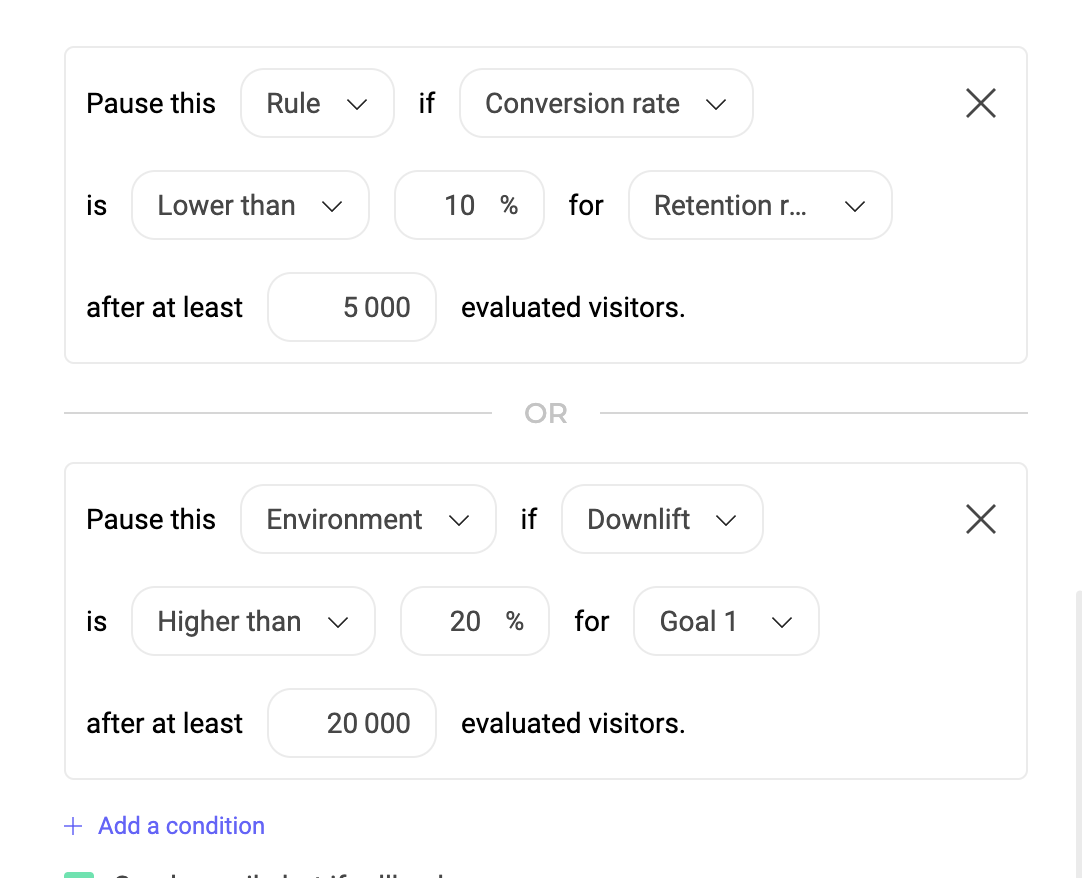
Once saved, Kameleoon will continuously monitor the metrics you specified against the defined condition(s). You can choose to add as many additional conditions you’d like by repeating the same steps; however, whichever condition is met first will be executed, and the rest will be ignored.
## Setting up email alerts
Set up email alerts to receive notifications when a rollback occurs. These alerts ensure your team stays informed about unexpected adverse effects on your key performance metrics.
To enable alerts, select **Send Email alerts** and enter the recipients' email addresses. Click **Save** to finalize.