> ## Documentation Index
> Fetch the complete documentation index at: https://docs.kameleoon.com/llms.txt
> Use this file to discover all available pages before exploring further.
# Experiment on LLM prompts and AI-agent configurations
> Use Kameleoon feature flags to run controlled experiments on the prompts, models, and configurations behind an LLM application or AI agent, and measure impact with AI-quality, operational, and business metrics.
LLM-powered applications and AI agents are non-deterministic. Changing a prompt, model, retrieval strategy, tool configuration, or agent workflow can affect response quality, operating cost, latency, and user behavior in different, hard-to-predict ways. Evaluation frameworks such as RAGAS score whether an individual response meets a quality bar, but that score doesn't tell you whether the change helps users accomplish what they came to your product to do.
You can use Kameleoon Feature Experimentation capabilities to customize, test, and roll out the configuration behind a generative AI application or AI agent. A feature variable holds a single piece of that configuration (a prompt, a model parameter, a retrieval strategy, a tool definition), so your team can manage it outside your application code. Each variation represents a candidate configuration, which lets you iterate, experiment, and release changes more safely, without redeploying.
Split traffic between variations and compare their impact using several types of metrics:
* **AI-quality metrics**, such as correctness, groundedness, relevance, safety, or compliance
* **Agent-performance metrics**, such as successful tool use or task completion
* **Operational metrics**, such as latency, token consumption, errors, and cost
* **User and business metrics**, such as satisfaction, escalation, conversion, retention, and revenue
Because the configuration lives in a feature flag instead of your source code, you can add, edit, or roll back a variation directly from the Kameleoon platform at any time.
## Evaluation and experimentation solve different problems
Evaluation determines whether an individual model or agent output meets a defined quality standard. Observability tools let you inspect the prompts, responses, traces, retrieval steps, and tool calls behind that output. Experimentation determines whether a change to the underlying configuration causes a measurable improvement for users or the business: a question neither evaluation nor observability answers.
For example, an LLM judge might score one prompt as more grounded than another. A Kameleoon experiment tells you whether that same prompt also improves task completion, reduces escalation, increases satisfaction, or affects latency and cost, the outcomes your team is accountable for.
Kameleoon doesn't replace your LLM observability or evaluation stack. Feed evaluator scores from RAGAS, an LLM judge, or a human review process into Kameleoon as a [custom goal](/user-manual/assets/goals/create-a-goal#custom-goal) with a numeric value, and track them alongside the behavioral and business goals your experiment already measures, connecting model-level quality signals to statistically reliable measurement of real user impact.
For most AI experiments, combine several metric types rather than relying on one:
* Set a user or business outcome as the primary goal.
* Track AI-quality metrics as secondary goals or guardrails.
* Monitor latency, cost, errors, and safety as operational guardrails.
* Validate automated judges against a sample of human-reviewed examples before you trust their scores at scale.
## How it works
A feature flag stores each configuration (such as a prompt) as the value of a feature variable, with one variation per option you want to test. When a visitor reaches your application, the Kameleoon SDK assigns the visitor to a variation and returns the corresponding value, which your application code uses to call the LLM or configure the agent. A goal attached to the feature flag records a conversion when the visitor interacts with your LLM-powered feature or AI agent, such as asking a follow-up question or completing a task with its help. After you collect enough traffic, compare each variation's conversion rate, along with any AI-quality or operational metrics you're tracking, to decide which configuration performs best.
## Prerequisites
* A Kameleoon account with a project set up for feature experimentation.
* Your account's client ID and client secret. To find these values, see [API credentials](/user-manual/account-and-team-management/users-and-teams/api-credentials).
* A Python application where you can install the Kameleoon SDK.
## Set up your prompt experiment in Kameleoon
Configure the feature flag, prompt variations, and tracking goal in the Kameleoon platform before you touch your application code.
### Create the feature flag
Create a feature flag to hold your prompt variations and control the rollout of your experiment.
1. In the Kameleoon app, click **Features** > **Flags & Experiments** > **New feature flag**.
2. Enter a name, for example `LLM prompt test`, and select the project for the flag.
3. In the **Description** field, note what the flag controls, so other members of your team understand its purpose.
4. Click **Validate**.
For more detail, see [Create a feature flag](/user-manual/experimentation/feature-experimentation/create-and-manage-flags/create-a-feature-flag).
### Store the prompt in a feature variable
Add a feature variable to hold the prompt text, so you can change it from the Kameleoon platform without editing your application code.
1. On the flag's page, in the left sidebar, click **Set Up** > **Variables** > **Add Variable**.
2. Set the variable's **Type** to **String**.
3. Enter a **Variable Key**, for example `prompt_template`.
4. Set the **Default Value** to the prompt your application currently uses. Kameleoon delivers this value to visitors who aren't part of your experiment.
5. Click **Save**.
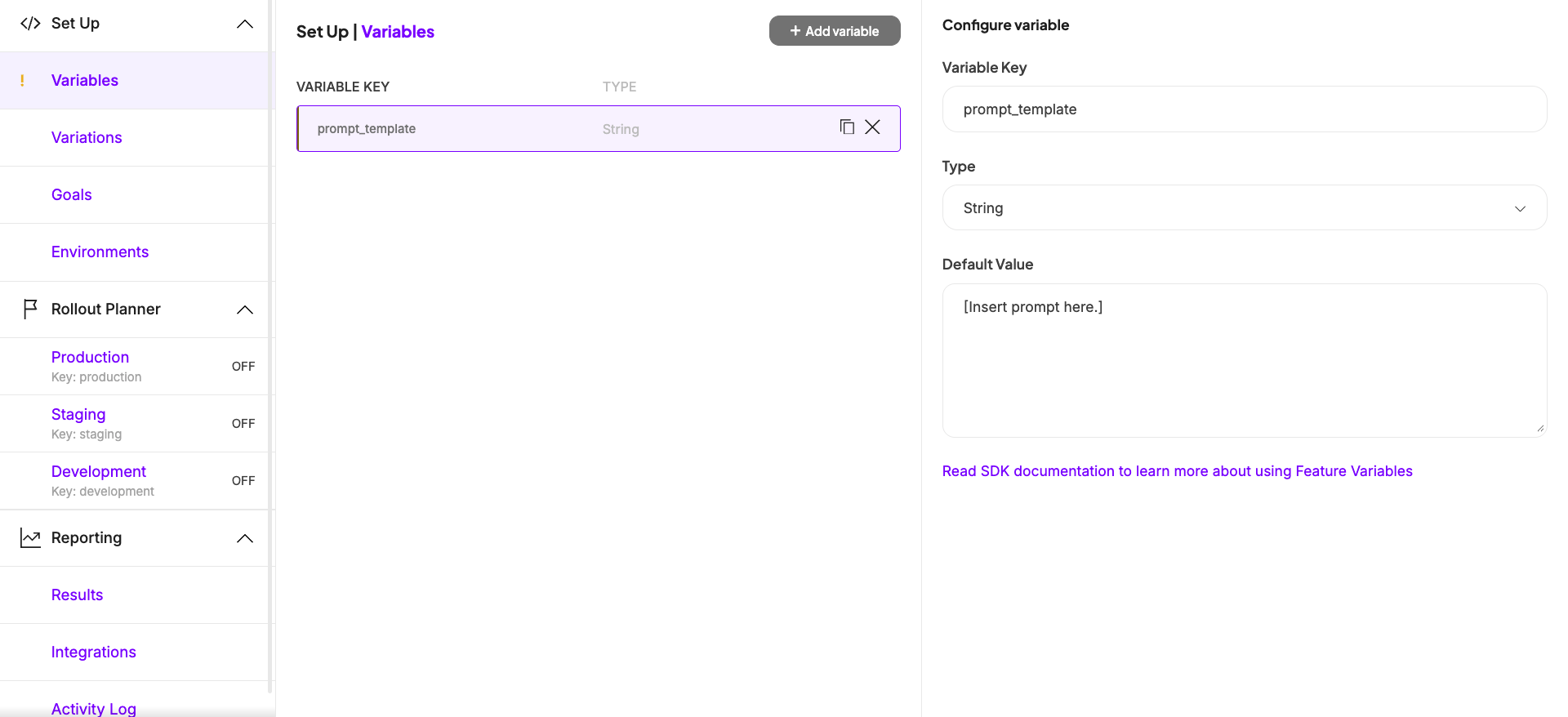
For more detail, see [Define feature variables](/user-manual/experimentation/feature-experimentation/configure-your-feature-flags/define-feature-variables).
### Create a variation for each prompt
Create one variation per prompt you want to test, and set the `prompt_template` variable to the corresponding text in each.
1. In the left sidebar, click **Set Up** > **Variations** > **Add variation**.
2. Enter a **Name** for the variation, for example `Detailed summary`.
3. Set the `prompt_template` variable to the prompt text for this variation.
4. Click **Save**.
5. Repeat these steps for each additional prompt you want to test.
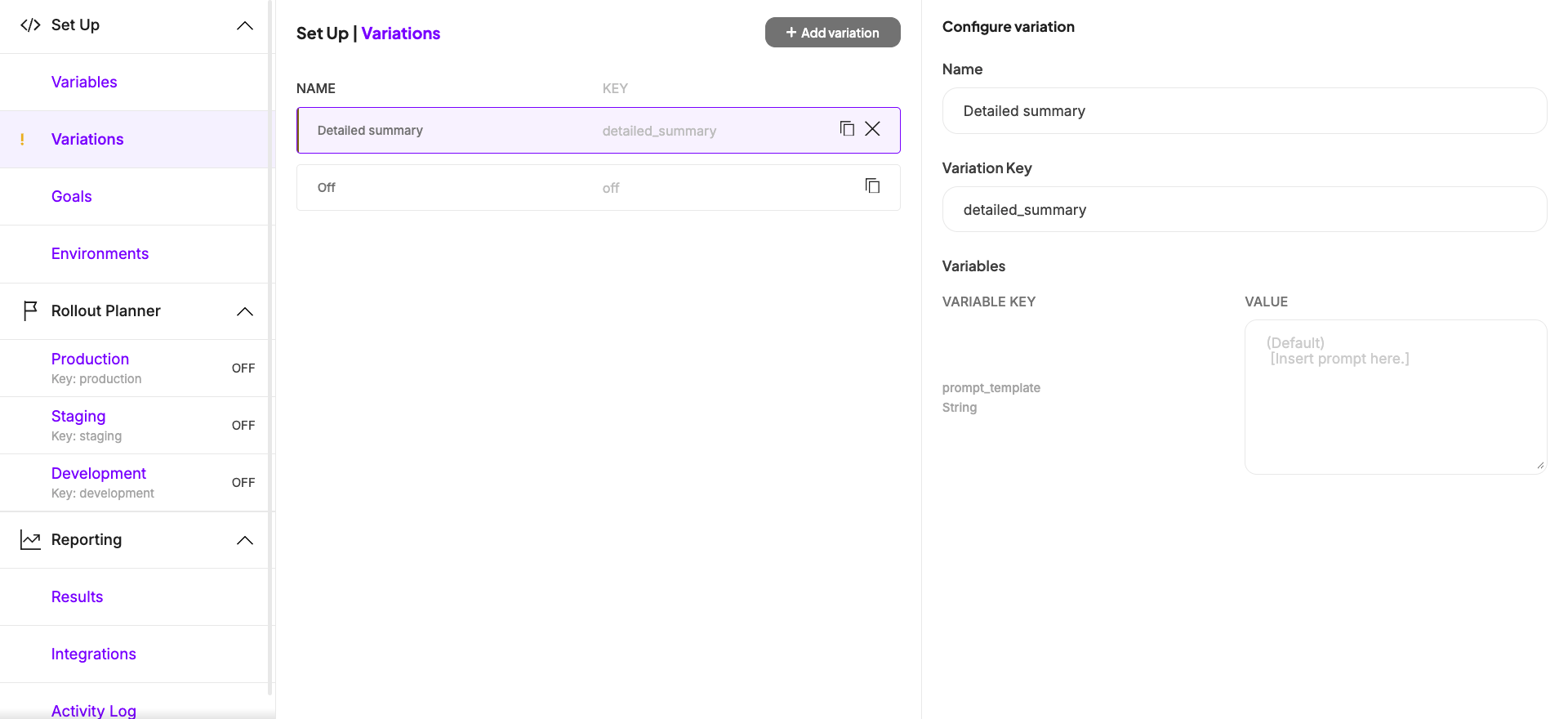
For more detail, see [Define feature variations](/user-manual/experimentation/feature-experimentation/configure-your-feature-flags/define-feature-variations).
### Attach a goal to measure engagement
Attach a goal to the feature flag so Kameleoon can measure which prompt variation drives more engagement. Because Kameleoon is a unified platform, you can attach any goal that already exists in your organization, such as a transaction goal defined by another team, or create a goal specific to your LLM-powered feature.
1. On the flag's page, in the **Set Up** menu, click **Goals** > **Add goal**.
2. Select an existing goal, or click **Create a new goal** to define one, such as a custom goal that fires when a visitor interacts with your LLM-powered feature.
3. Click **Save**.
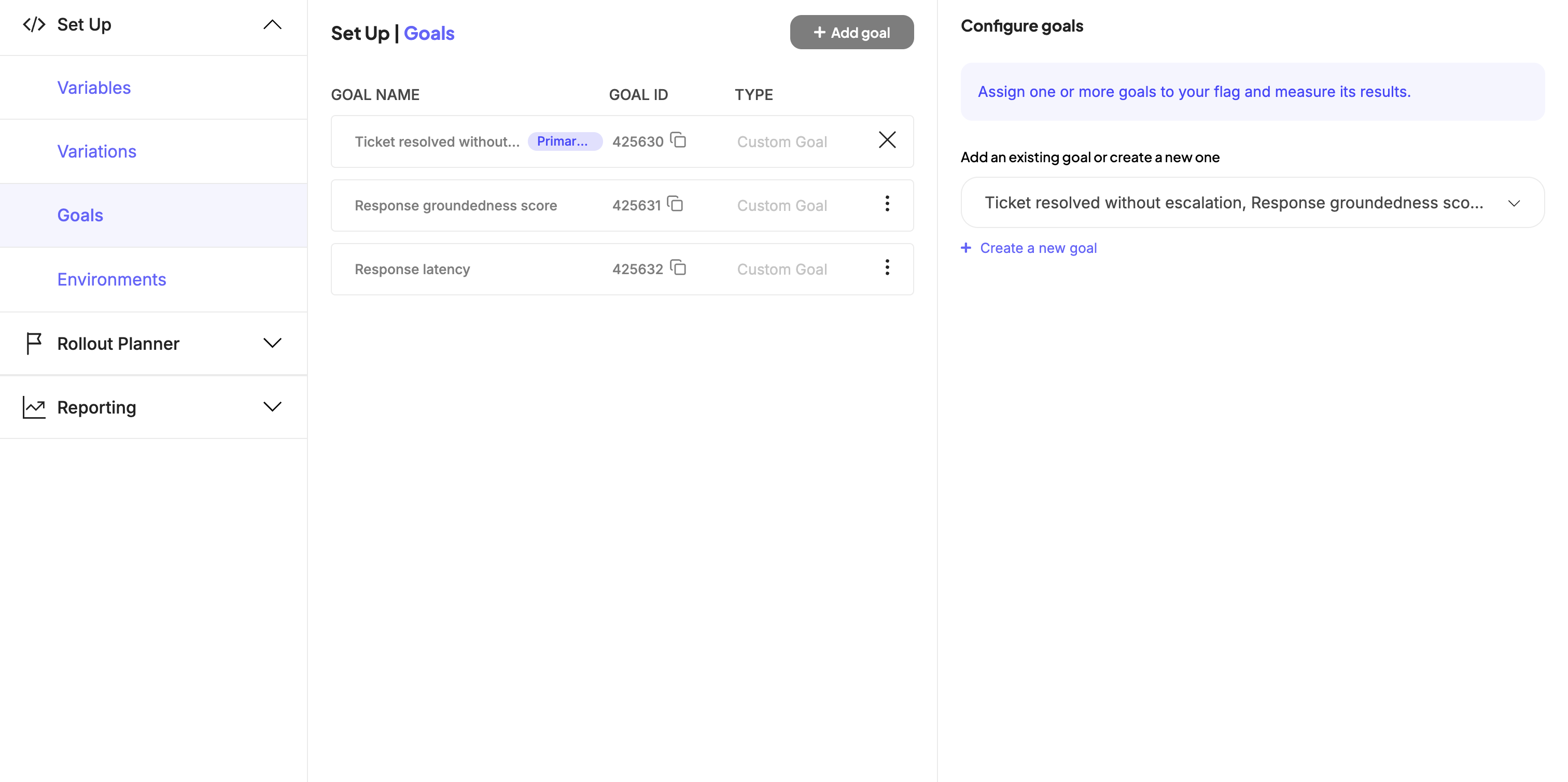
For more detail on goal types, including how to trigger a custom goal from your backend, see [Create a goal](/user-manual/assets/goals/create-a-goal#custom-goal).
### Roll out the experiment
Create an experiment rule that splits traffic between your prompt variations, then turn on the environment to start collecting data.
1. In the **Rollout Planner**, select the environment you want to target, for example **Production**.
2. Click **Add a rule** > **Experiment**.
3. Under **Variations to serve**, add each prompt variation and set its exposition percentage. For example, split traffic evenly between two variations at 50% each.
4. Set the rule's targeting to include the visitors you want to test, for example all visitors reaching the application.
5. Turn the environment's **ON/OFF** toggle to **ON**.
6. Click **Save**.
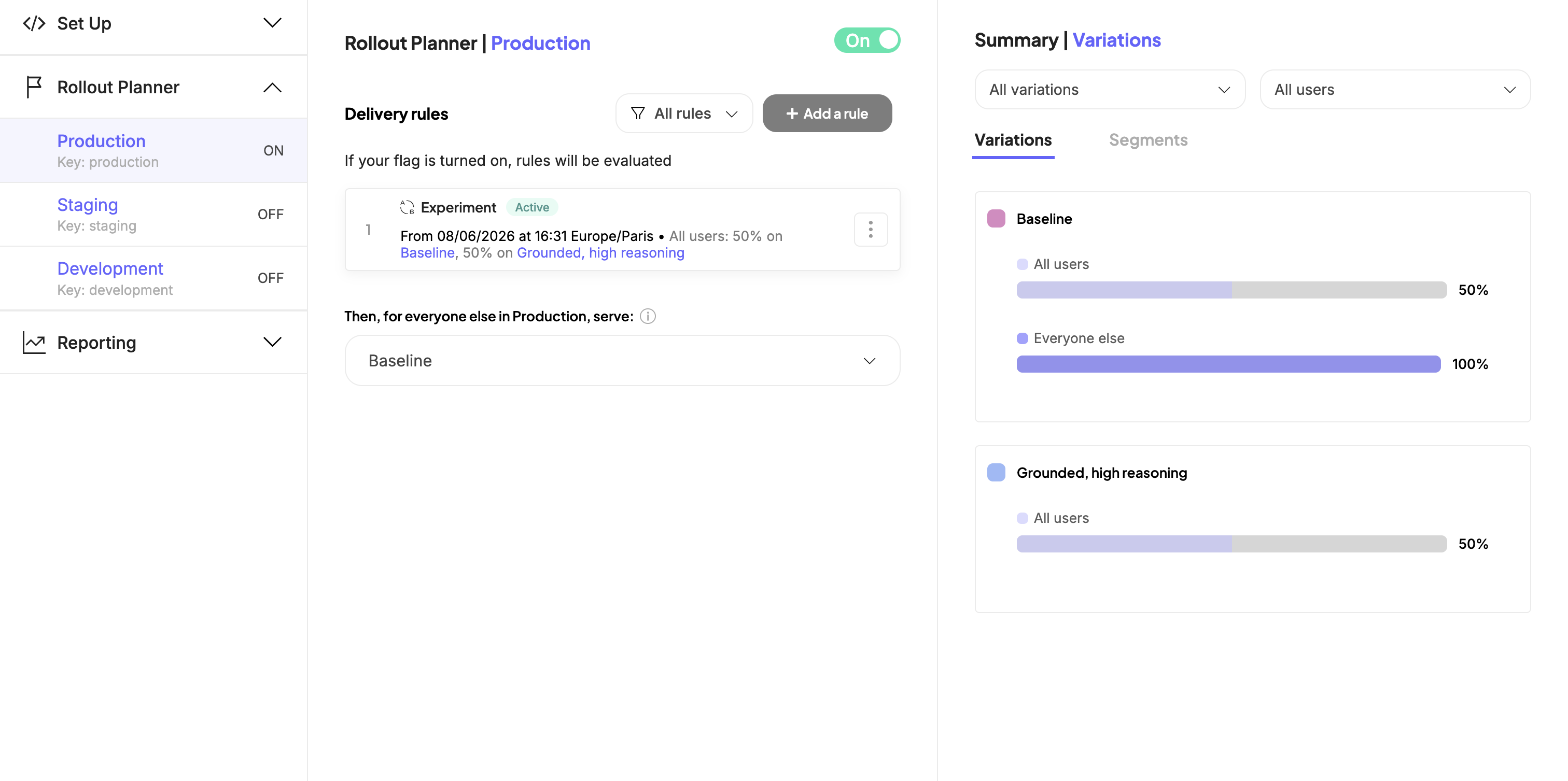
For more detail, see [Create feature experiments](/user-manual/experimentation/feature-experimentation/using-the-rollout-planner/optimizations-and-scheduling/create-feature-experiments).
Once you save the rule, Kameleoon starts assigning visitors to a variation and serving the corresponding prompt. To change a prompt or add a variation later, edit it directly in the Kameleoon platform. You don't need to redeploy your application to make these changes.
## Retrieve the prompt in your application
Install the Kameleoon Python SDK, then retrieve the visitor's assigned prompt and track a conversion when the visitor interacts with your LLM-powered feature. The same pattern applies to any [Kameleoon server-side SDK](/developer-docs/feature-experimentation/get-started/overview#server-side-sdks), including Node.js, Java, and Go.
1. Install the SDK as a dependency:
```bash theme={null}
pip install kameleoon-client-python
```
2. Initialize the client with your site code and credentials:
```python theme={null}
from kameleoon import KameleoonClient, KameleoonClientConfig, KameleoonClientFactory
SITE_CODE = "a8st4f59bj"
FEATURE_KEY = "llm_prompt_test"
GOAL_ID = 12345 # Replace with the ID of the goal you attached to the flag
configuration = KameleoonClientConfig(
client_id="your-client-id",
client_secret="your-client-secret",
)
kameleoon_client = KameleoonClientFactory.create(SITE_CODE, configuration)
await kameleoon_client.wait_init_async()
```
3. Retrieve the assigned prompt before you call your LLM, and track a conversion when the visitor interacts with the LLM-powered feature:
```python theme={null}
def get_prompt_for_visitor(visitor_code: str) -> str:
variation = kameleoon_client.get_variation(visitor_code, FEATURE_KEY)
return variation.variables["prompt_template"].value
def track_llm_interaction(visitor_code: str) -> None:
kameleoon_client.track_conversion(visitor_code, GOAL_ID)
```
Call `get_prompt_for_visitor()` with the visitor's `visitor_code` before you send a request to your LLM, and use the returned value as the prompt. Call `track_llm_interaction()` when the visitor interacts with the LLM-powered feature, such as submitting a question or receiving a response.
Use [`get_visitor_code()`](/developer-docs/sdks/web-sdks/python-sdk#get_visitor_code) to assign a unique ID to each visitor, and [`set_legal_consent()`](/developer-docs/sdks/web-sdks/python-sdk#set_legal_consent) if your application requires visitor consent before tracking data. For the full client initialization and configuration reference, see the [Python SDK developer guide](/developer-docs/sdks/web-sdks/python-sdk#developer-guide).
## Monitor and iterate
Open the feature flag's results page to compare the conversion rate of each prompt variation against the goal you attached. Kameleoon tracks exposures and conversions automatically whenever your application calls `get_variation()` and `track_conversion()`, so you don't need any additional instrumentation. If you also attached an AI-quality or operational metric as a goal, compare it alongside conversion rate before you decide which variation to roll out.
For more detail, see [Analyze a feature flag's overall results](/user-manual/experiment-analytics/analyze-results/feature-flag-results/analyze-a-feature-flags-overall-results).
## Next steps
* Read the [Python SDK reference](/developer-docs/sdks/web-sdks/python-sdk) for advanced options such as custom data, cross-device experimentation, and targeting conditions.
* Attach [precise segmentation criteria](/developer-docs/feature-experimentation/targeting-and-segmentation/native-segmentation) to target the experiment at a specific audience.
* Explore [feature variables](/user-manual/experimentation/feature-experimentation/configure-your-feature-flags/define-feature-variables) to variabilize other parts of your LLM-powered feature or AI agent, such as model parameters, retrieval settings, or tool definitions.
* Attach multiple goals to the same flag, such as an AI-quality score from your evaluation pipeline alongside a business metric, to compare configurations across several dimensions at once. See [Create goals for feature flags](/user-manual/experimentation/feature-experimentation/track-your-feature-experiments/create-goals-for-feature-flags).