> ## Documentation Index
> Fetch the complete documentation index at: https://docs.kameleoon.com/llms.txt
> Use this file to discover all available pages before exploring further.
# Feature flag comments
> Add, reply to, and manage comments directly on feature flags to centralize team discussions and decisions in Kameleoon.
Feature flag comments let your team centralize discussions and decisions directly within Kameleoon. Instead of relying on external tools, you can easily communicate about specific feature flags, ensuring everyone has the necessary context, leading to faster decisions and better collaboration.
## Access the Comments panel
1. In the left sidebar, click **Features** > **Flags & Experiments**.
2. **Edit** an existing feature flag or **create a new one** (for more information on creating feature flags, see [this article](./create-a-feature-flag)).
3. On the feature flag configuration screen, click the **text bubble icon** in the top-right corner.

The **Comments** panel opens on the right side of the screen. The panel has two tabs: **Active** and **Archived**.
## Use comments to collaborate
### Add a new comment
1. In the **Active** tab, click **Add comment** and type your comment in the text field.
* To notify a teammate and help them find the comment, use the **@** symbol to tag them (for example, `@JaneDoe`).
2. Click **Save**.
### Reply to a comment
1. Find the comment you want to respond to.
2. Click **Add reply** beneath the comment.
3. Enter your response.
4. Click **Save**.
#### View and hide replies
* To view replies, click **Show reply** or **Show replies** (the number of replies is shown in brackets).
* To hide replies, click **Hide reply** or **Hide replies**.
### Edit or delete your comments
You can edit or delete comments that you posted.
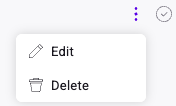
1. Click the **three-dots menu** associated with your comment.
2. Click **Edit** to modify the text **or** **Delete** to permanently remove the comment.
## Manage comments
### Resolve and archive comments
Once a discussion is complete, mark the comment as resolved to declutter your active list.
* In the **Active** tab, click the **Checkmark icon** next to the comment you want to resolve.

The comment is marked as resolved and automatically moved to the **Archived** tab.
### View and unresolve archived comments
1. Click the **Archived** tab to view all resolved comments.
2. To move a resolved comment back to the active list, click the **checkmark icon** next to it.
The comment is marked as unresolved and moves back to the **Active** tab.
### Search and filter comments
Use the search bar above the comments list to quickly find specific discussions in either the **Active** or **Archived** tab.
### Adjust display settings
Customize how comments display in the list.
1. Click the **cog icon**.
2. Choose a sorting option:
* **Newest on top**
* **Oldest on top**
* **By author (A to Z)**
3. To filter the list, select the option to **only display comments tagging you**.