> ## Documentation Index
> Fetch the complete documentation index at: https://docs.kameleoon.com/llms.txt
> Use this file to discover all available pages before exploring further.
# Approvals for flag changes
> Implement a request-and-review workflow to control and audit feature flag changes before they go live.
Enabling approvals for flag changes introduces a request-and-review mechanism for feature flag edits. Team members can request changes, and designated approvers can review and approve or reject these requests before they take effect.
Flag approvals give you greater control over which changes apply to your flags. After you configure approval settings, flag changes made by certain users pass through a request-and-review process, so only approved changes reach end users.
## Activate approvals for a project
Only users with **Admin** rights can configure approvals. To activate flag approvals:
1. Click **Features** > **Flags & Experiments** in the left sidebar.
2. Click the **Settings** tab, then select **Approval settings**.
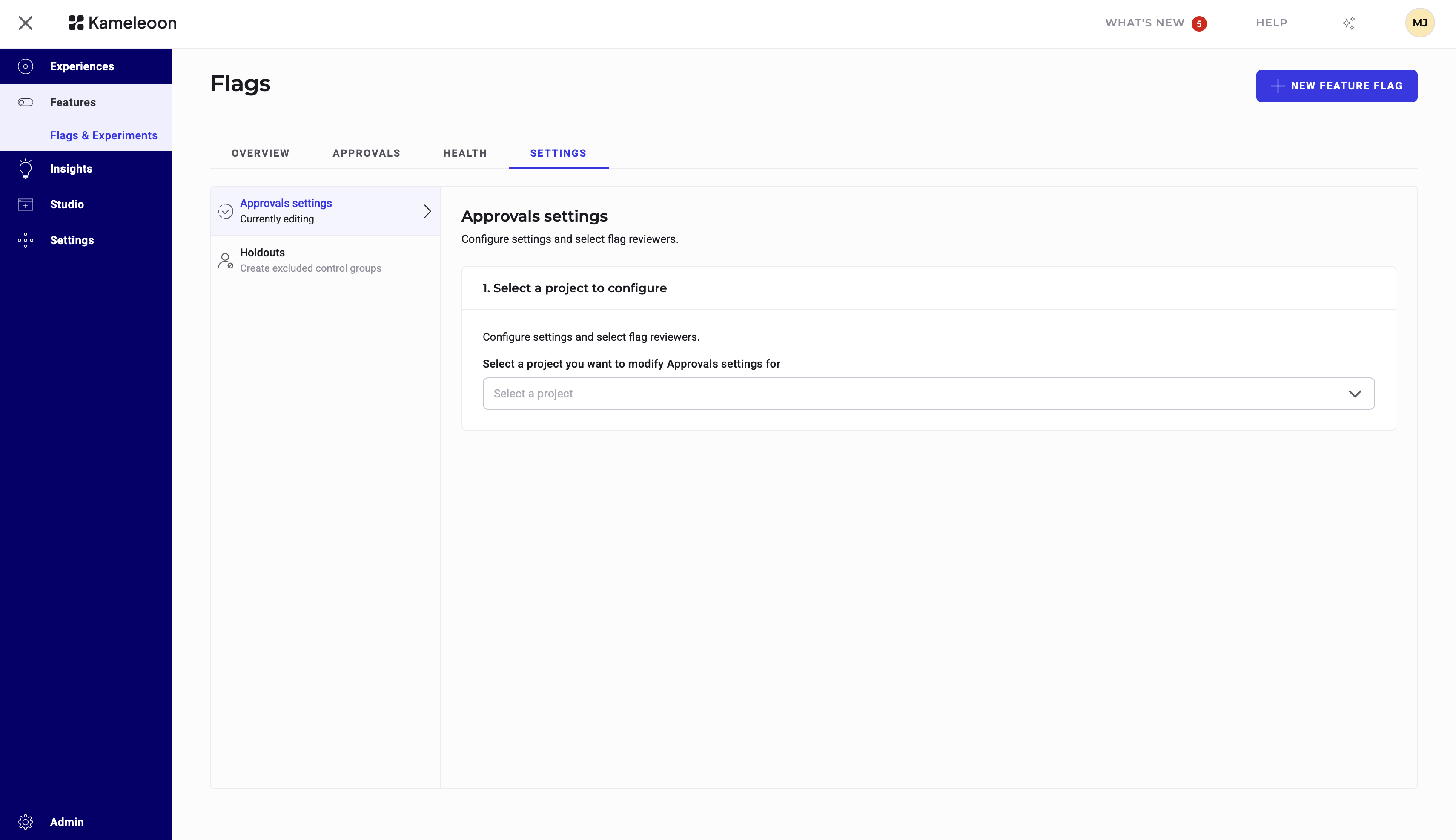
3. Select the project for which you want to enable flag approvals from the dropdown.
4. Select the users who can review requests, then click **Save**.
If you select the option to trigger approvals only for the production environment, Kameleoon applies the workflow only to the environment with the key `production`. However, changes that indirectly affect the production environment—such as updates to variables, variations, or goals—also trigger the approval workflow.
Approvals don't control environments, integrations, or the flag toggle. Only users with **Production** permissions can change a flag's state (on/off).
## Request approval for flag changes
After you activate approvals for a project, non-reviewer users see an approval request popup when they save their changes. You can customize the title of the request and add a comment that the approver can see.
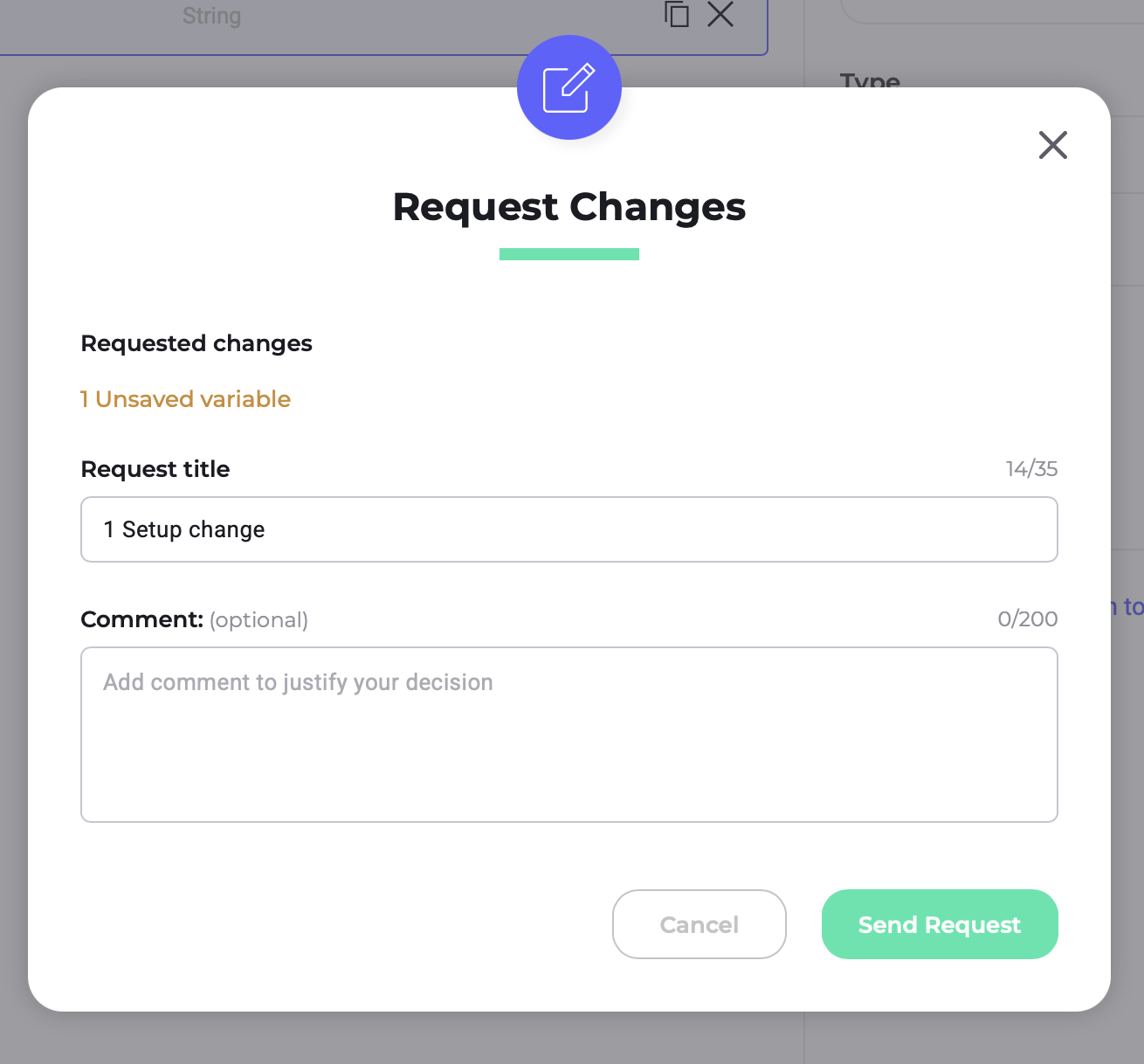
Requesters can make and submit changes in bulk across different sections of the setup or environments. Kameleoon notifies approvers of pending requests so they can review the proposed changes.
All approval requests are visible in the **Review** section. To withdraw an individual request that is still **Pending**, click the request, then click **Withdraw request**.
## Approve change requests
On the main dashboard, approvers can see an overview of each flag's review status:

* **Pending**: The flag has at least one pending request.
* **Reviewed**: All requests have been either approved or rejected.
Hover over the review stage to display additional information.
When editing a feature flag, reviewers can navigate to the **Review** section to see all requests. Click a request to view its details, including proposed changes and comments. Requests can have one of four states:
* **Pending**: Awaiting review.
* **Approved**: The change has been approved and applied.
* **Rejected**: The change was declined.
* **Invalid**: The requested changes are no longer applicable because of more recently applied changes. Kameleoon rejects this request by default.
For each request, approvers can approve or decline the proposed changes. Kameleoon applies or discards the associated changes accordingly.
Approvers can only review requests in top-down order (newest request first).
## FAQs
No. After you enable approvals, all flags in a project must go through the approval workflow. If the process seems too stringent, consider revising the list of approvers.
Kameleoon discards rejected requests, but requesters can always resubmit their changes.
A newest-first review process ensures that invalidated requests are flagged and ignored, eliminating any risk of data conflicts.