> ## Documentation Index
> Fetch the complete documentation index at: https://docs.kameleoon.com/llms.txt
> Use this file to discover all available pages before exploring further.
# Manage your widgets
> Access the Widgets dashboard to search, filter, edit, duplicate, simulate, activate, and delete your Kameleoon widgets.
## Access the Widgets dashboard
To access the **Widgets** dashboard, click **Studio** > **Widgets**.
## Structure of the Widgets dashboard
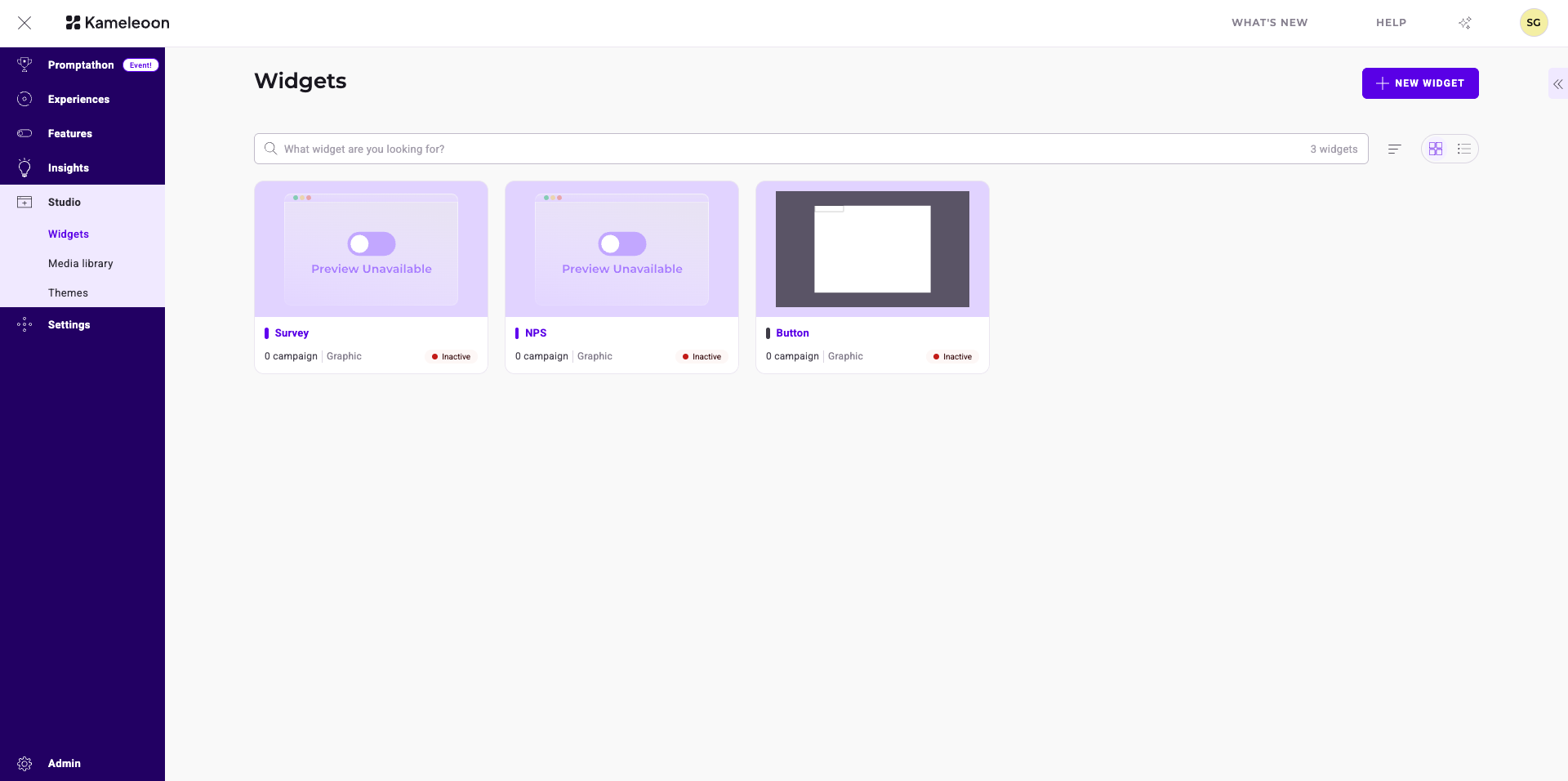
* **Header:** Contains the **New widget** button.
* **Search bar:** Searches for widgets and displays the total count of created widgets.
* **Display options:** Switches the layout between **Card view** and **List view**. Sorts widgets by modification date or alphabetically.
* **Cards:** Display widget details, such as status. Each card includes an **Edit** button and a **More actions** menu to manage the widget.
* **Sidebar:** Filters results, customizes columns, and manages saved views.
## Widget information
Each widget is represented by a card that indicates its main information.
Hover over the tooltip to the right of a widget's name to access detailed information about the widget.
## Dashboard sidebar
### Filter
You can filter your widgets based on several criteria:
* Project
* Widget type
* Status
* Linked to
* Tag
* Creator
Select the filters and click **Apply**. Click **Save as view** to save your configuration as a [view](#views).
### Columns
#### Display
Select which columns you'd like to display on the dashboard table. Click the **checkbox** associated with a column to select or deselect it. Click **Apply** to apply your changes.
#### Sort by
Select the criteria by which to sort your widgets and the associated sorting rule (for example, newest to oldest, alphabetical, ascending number of tags).
### Views
Select which view you'd like to apply to the dashboard. To change the default view, click a view's **three-dots** menu > **Default**.
## Edit a widget
Click the **pencil** icon to edit a widget. Depending on how you set up the widget, you will be redirected to the Code editor or the Widget Studio.
## Secondary actions
Click the **three-dots menu** on a widget's card to access the available actions. The actions depend on your widget's status.

### Simulate
You can simulate a widget and preview it in a production-like context on the URL entered when the widget was created, without needing to associate the widget with an experiment. A sidebar appears with settings to define before launching the simulation.
### Rename
You can rename a widget.
Click **Save** to validate the widget's renaming.
### Manage tags
You can manage the tags associated with a widget.
Tags associated with your widget are highlighted in the **Manage tags** sidebar and widget card. You can associate tags and create new ones. Click **Save** to validate your choices.
### Duplicate
You can duplicate a widget.
Click **Save** to validate the widget's duplication. You can find the new widget in the Dashboard.
### View code
You can view a widget's code.
You can change which devices the widget displays on and its position on the page. Click **View code** again to view the widget's JS and CSS code, copy the code, or expand the window.
### Export to .json
Download your widget as a `.json` file.
### Activate/Deactivate
You must activate a widget to use it in a campaign.
A widget's status is indicated on its card. If its card is white, the widget is activated. If its card is gray, the widget is deactivated.
If you deactivate a widget, you can't use it in your campaigns.
### Delete
You can delete a widget.
Confirm your choice in the pop-in to validate the widget's deletion.