> ## Documentation Index
> Fetch the complete documentation index at: https://docs.kameleoon.com/llms.txt
> Use this file to discover all available pages before exploring further.
# Widget Studio custom code editor
> Write custom CSS and JavaScript in the Widget Studio code editor to apply styles to widget elements and run scripts on demand.
You can create custom CSS or JS code in the Widget Studio and apply your custom styles to any widget element or run your scripts on command.
In this article, you will learn how to:
* Add custom CSS
* Apply your CSS code to widget elements
* Add JS code
* Change code view
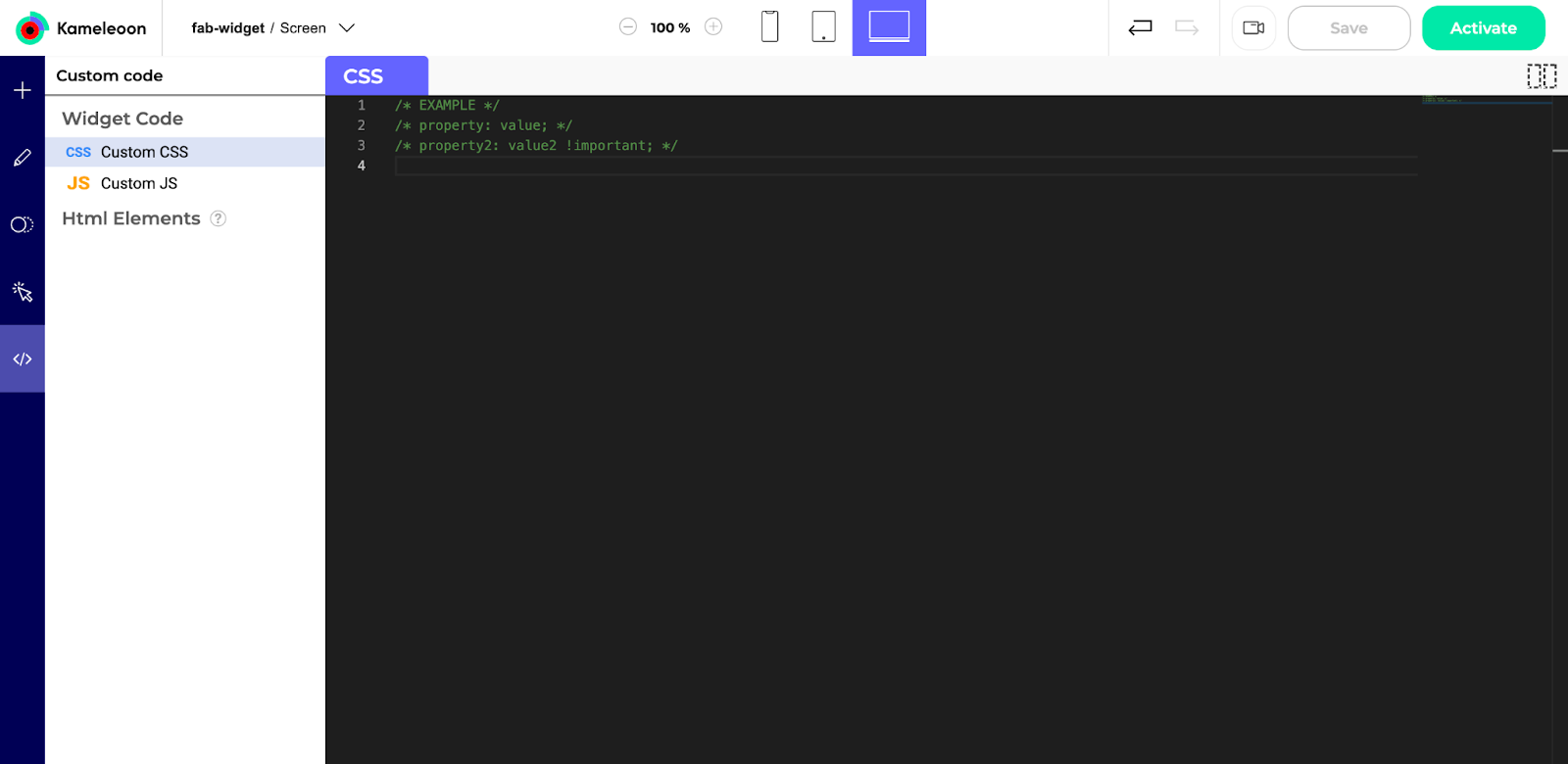
## Example use case
A common use case of custom code is applying the same style to widget elements multiple times, rather than manually setting up style properties on each element. If you're a non-technical user, ask one of your developers to create predefined CSS classes for you.
## Add custom CSS code
1. Click **Custom code** in the left menu. The page opens with the **Custom CSS** option selected.
2. Add your CSS code in the code editor.
## Apply CSS code to widget elements
1. Open the **Design** section.
2. Select an element. This element will be styled according to one of the classes you created in the code editor.
3. Scroll down and unfold the **Css and classes** section.
4. Add your class's name in the **Element ClassName** field, or in **Container ClassName** if you want to apply this class to the parent element.
Your selected element styled according to your custom code will not appear in the right preview area. You must click the **camera icon** to see your changes.
## Add JS code
Adding JS code lets you run custom script on demand in your widget.
1. Click **Custom code** in the left sidebar.
2. Click **Custom JS**.
3. Add your JS code in the code editor.
To check your script's execution, click the **camera icon**.
## Change code view
If you're working with both CSS and JS code, you may want to read both codes at the same time. To add multiple code editors:
1. Click the **Add Panel** icon in the upper right corner above the code editor.
2. Manually resize each panel to suit your needs.
To close a panel, click the **X** to the right of the code bookmark (JS or CSS).