> ## Documentation Index
> Fetch the complete documentation index at: https://docs.kameleoon.com/llms.txt
> Use this file to discover all available pages before exploring further.
# Edit your widgets
> Add, design, resize, move, and animate elements in the Widget Studio, and insert custom data or fonts to build personalized widget experiences.
## Add an element
In the **Add element** section, click an element type to add it to your widget.
Several elements are available.
### Typography
* Heading
* Text
* Link
### Survey
* Button
* Short Answer
* Long Answer
* Multiple Choice
* NPS
* Scale
* Hidden input
### Media
* iFrame
* Image
* Video
* HTML
* Slider
* Countdown
* Click-to-copy
* Progress bar
* Step Progress bar
* QR Code
* Wheel of fortune
### Layout
* Block
* Close button
* Shape
* Tooltip
### Form
* Input
* Date
* Time
* Toggle
* Checkbox
* Radio button
* Select
* Text area
* Range input
* Error message
The layer stack reflects the position of the elements in the foreground or background.
## Design an element
You can design your widget's elements in the **Content** section.

### Select an element
Click an element to select it, or click its name in the hierarchy panel on the left.
### Hover over an element
Hovering over an element in the left panel will display secondary actions. Click the **+** icon to add an element below the selected element. Click the **three-dots** menu to edit, rename, duplicate, hide, or delete the element.

If an event is associated with one of your elements, you can't delete the element. You must delete the event first.
#### Duplicate
You can duplicate an element on the same screen, or duplicate an element from one screen to another.
### Click on an element
Click an element to access its settings.
You can use AI to edit or generate your text.

To add a link, highlight a word, group of words, or a whole block of text.
To modify the URL associated with text, you can create a click event and associate a **URL** action with it.
You can also add emojis to your headings, text, and links.
### Upload your own font
You can add your own font to your widget.
1. Click the **T** icon in the text editor, then click **+ Add a font**.

2. In the font import settings, choose your **Font Source:**
* **From your website:** Select this option if the font is already hosted on the same website as the widget.
* **Link to a font file:** Provide the direct URL to the font file (for example `.woff`, `.woff2`, or `.tiff`).
* **Embed code:** Insert the CSS code to import the font using `@import` or `@font-face` (from services like Google Fonts or Adobe Fonts). When pasting Google Fonts, only copy the code from `@import` to ``.
3. Specify the **Font Family**.
4. Click **Preview & Add** to instantly see how the font will look with your text.

You can also adjust the preview text and toggle italic display. You can select one or several font weights. Click **Add** to confirm.
Once saved, your font will appear in the **Font family** dropdown. You can apply the font to any text element and preview it in real time.
### Use custom colors
With the eyedropper in the color picker panel, you can pick any color on the screen and use it in an element.

### Insert dynamic texts & links
You can insert generated text or link parameters based on the value of a form input/API/custom data.
### Resize an element
You can resize your elements in the preview window (on the right). Position your cursor on an element's edge, then click and drag to edit its dimensions.
You can also modify these dimensions in the left panel.
#### Auto-resize text and heading
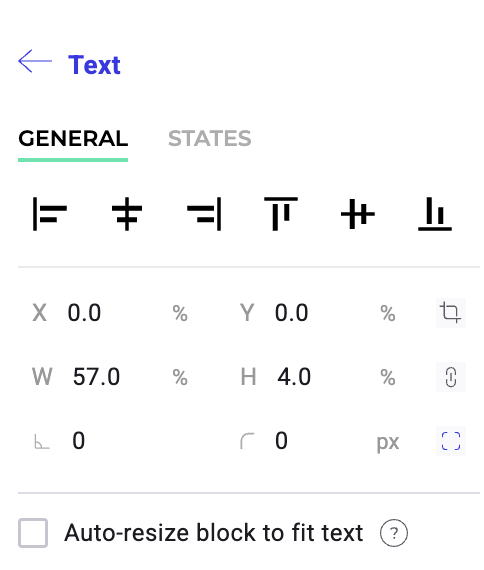
This option automatically adjusts the element's size, so it expands or shrinks to fit the text content.
#### Smart guides
Smart guides help you align and position elements both vertically and horizontally while editing your widget.
#### Constrain proportions
Once your element is resized, you can lock its dimensions.
To constrain an element's proportions:
1. Select an element in the left panel.
2. Hover over the element and click the **padlock**.
## Edit an element's states
When you select an element, two tabs appear at the top of the editing menu: **General** and **States**.
Select the **States** tab to find additional properties that let you edit the element's states (Hover, Active, Disable).

For example, you can personalize a heading element's hover appearance depending on its state.

When you select the **States** tab, your widget's preview will switch to its default state if you click the **General** tab. You can choose the element's default state in the **General** tab.
## Move an element
Drag and drop an element in the preview to move it.
## Rotate an element
If you want to rotate an element, select it, and enter the desired rotation angle in the rotation parameter located in the left panel.
## Edit an image in the Image Editor
To edit an image in the Image Editor:
1. Navigate to the image you want to edit.
2. Select **Open in Image Editor**. The Image Editor will open.
3. Apply your desired edits.

Four tabs are available in this editor:
* Frame
* Draw
* Shapes
* Filters
In the top right of the Image Editor, you can zoom in and out, undo your changes, reapply them, or change the image you're editing.
### Frame
Here, you can resize, crop, or flip your image.

#### Resize
To resize your image:
1. Click the **Resize** tool.
2. Enter the desired dimensions or use the slider to adjust the image's size.
#### Crop
If you need to trim the edges of your image:
1. Click the **Crop** tool.
2. Choose a preset dimension or select the crop area.
#### Flip
You can flip your image horizontally or vertically using the **Flip** tool.
### Draw
Use the **Draw** tool to draw on your image. Select the brush size and color to customize your drawing.

### Shapes
Insert shapes, like circles, squares, or arrows, with the **Shapes** tool. You can adjust the shape's size, color, and position.
### Filters
Enhance your image with filters by selecting the **Filters** option. You can adjust your image's brightness, noise, and threshold.

## Edit the HTML of a text element
You can select any text element in your widget and edit it in HTML.

## Animate an element
You can animate a widget's element.
When an element is selected, you can activate two parameters (**Entrance animation** and **Exit animation**).

You must choose an animation effect, duration, and a delay (optional). Click **Pre-visualize** to preview your animation.
## Insert a custom data into an element
You can use custom data in your widget to create better personalization opportunities. With this option, you can insert a dynamic value in any text field.
To insert a dynamic value in a text field:
1. Select a text element and click **custom data** in the left panel.

2. Select a data source (a custom data you already created). You can attribute a default value to your custom data. This default value will be displayed if your custom data's value is undefined or null.
3. Click **Validate**.
You can then simulate how the custom data will display in production.