> ## Documentation Index
> Fetch the complete documentation index at: https://docs.kameleoon.com/llms.txt
> Use this file to discover all available pages before exploring further.
# Add rules to your form fields
> Set required fields and validation rules on form inputs to ensure visitors submit data in the correct format before the form is sent.
You can set rules for an element. Rules ensure you collect the correct form data in the correct format.
## Required option
You can set up mandatory fields in your form widgets. If information has not been filled in by the visitor, the field will be invalid.
If users do not fill in information in a mandatory field:
* Your element will switch to the **invalid** state.
* If you have added a **FormErrorMessage** element to your form, the element will become visible.
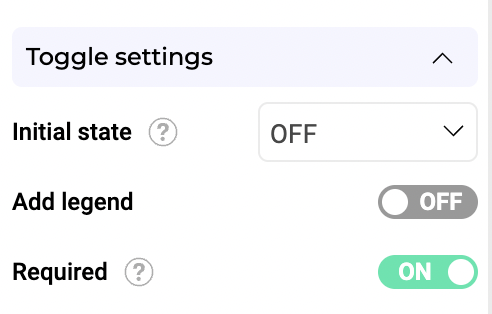
All element types belonging to the **Form** category can be made mandatory. If the element is a toggle, the visitor must switch it ON. If the element is a checkbox, the user must check it. If the element is an input field, the user cannot leave it empty.
### Use case example
Let's say you want to make all elements mandatory: the email address input, two dropdowns for selecting a newsletter category, and a toggle for accepting the Terms & Conditions.
Select each of these elements and switch the **Required** toggle to ON.
## Validation rules
### Validation rules triggered on form submission
In all that follows, we assume the following prerequisite: you created an event defining what happens when a visitor clicks the submit button and the associated action sends an HTTP Request.
You can set validation rules to check that fields are valid before submission. Validation rules only concern **Input** and **Textarea** elements.
For example, if a text input contains information in the wrong format, the form cannot be sent. You can set up an error message to ask the visitor to correct their input.
You can set one of these options:
* not empty
* only alphanumeric
* number
* email
* URL
* Text
* Length
* Regular expression
By default, validation will only take place when a visitor clicks the submit button.
However, you can create an Event to check the field when a visitor stops interacting with it.
#### FormErrorMessage
The **FormErrorMessage** element displays a message when an error is reported during validation.
To display a specific error message on an element in your form, you must use a **Text** element and associate it with an event.
### Addition of events to check the validity of your fields when losing focus
You can set validation rules to check that fields are valid when losing focus. Validation rules only concern **Input** and **Textarea** elements.
For example, if a text input contains information in the wrong format, an error message can be sent to the visitor to ask them to correct their input.
To set up this validation rule:
1. Navigate to an element's **Input settings**.
2. Select a **Validation rule** from the list.
3. Add a **Text** element containing the error message.
4. Place the error message next to the relevant input field.
5. Hide the error message, so it only appears when the input's value is in the wrong format.
6. Navigate to the Widget Studio's **Events** section.
7. Add a **Form** event.
8. Click **By element form value**.
9. Select a **Validation rule** in the dropdown menu.
10. Click **Add action**.
11. Select **Show element** and choose your text element.

When losing focus, the value of the element will be checked, and if it does not match your validation rule, the error message will appear in the widget.
You can also add a specific event to ensure the error message does not appear in your widget by default, but only when an error is detected when losing focus.
