> ## Documentation Index
> Fetch the complete documentation index at: https://docs.kameleoon.com/llms.txt
> Use this file to discover all available pages before exploring further.
# Create a product recommendation block
> Add, configure, and style a product recommendation block in your widget to display personalized product suggestions.
In this article, you will learn how to:
* Add a recommendation block
* Edit a recommendation block
* Position a recommendation block
## Add a recommendation block
To add a recommendation block:
1. Click **Add element** in the left sidebar.
2. In the list, click **Product recommendation** > **Product recommendation**.

3. Click **General** > **Block** and select the block you'd like to add to your widget.

In **Settings**, you can set the minimum number of products needed to display the recommendation block. You can also specify how to obtain the product ID from the product page where the widget is displayed. This setting is mandatory if you're using the algorithms “Similar products” or “Products usually purchased with this product” in your recommendation block.
## Edit a recommendation block
Click **Design** to edit your block's size and position. You can also edit its CSS. Click the enlarge icon to open the custom code section.
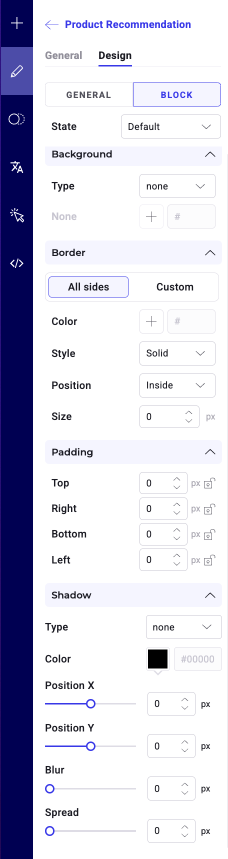
Click **Block** to customize additional settings like background color, border properties, or shadow effects. You can also create a hover state for the block.