> ## Documentation Index
> Fetch the complete documentation index at: https://docs.kameleoon.com/llms.txt
> Use this file to discover all available pages before exploring further.
# Use AI Targeting in a segment
> Use AI Targeting to create segments that target visitors based on their real-time predicted probability of converting for a specific goal.
AI Targeting is an add-on available in both Web Experimentation and Feature Experimentation. Contact your Customer Success Manager for details.
Kameleoon AI Targeting uses machine learning to calculate propensity scores in real time, so you can target visitors based on their likelihood to convert for a specific goal.
## Prerequisites
Before you can use the **Likelihood to convert** condition in a segment, you must:
1. Enable AI Targeting on at least one goal. See [Enable AI Targeting on a goal](../goals/enable-ai-predictive-targeting-on-a-goal).
2. Have at least one [trigger](../triggers/create-a-trigger) configured. For guidance on picking a meaningful trigger, see [How to choose the right trigger](../goals/enable-ai-predictive-targeting-on-a-goal#how-to-choose-the-right-trigger).
3. Wait for the AI model to complete its learning phase (7 days and 100,000 visits by default).
## Create or edit a segment with Likelihood to convert
1. Click **Settings** > **Segments**.
2. Click **New segment** to create a segment, or click **Edit** on an existing segment.
3. In the segment builder, expand the **Conversions** section.
4. Click **Likelihood to convert**.
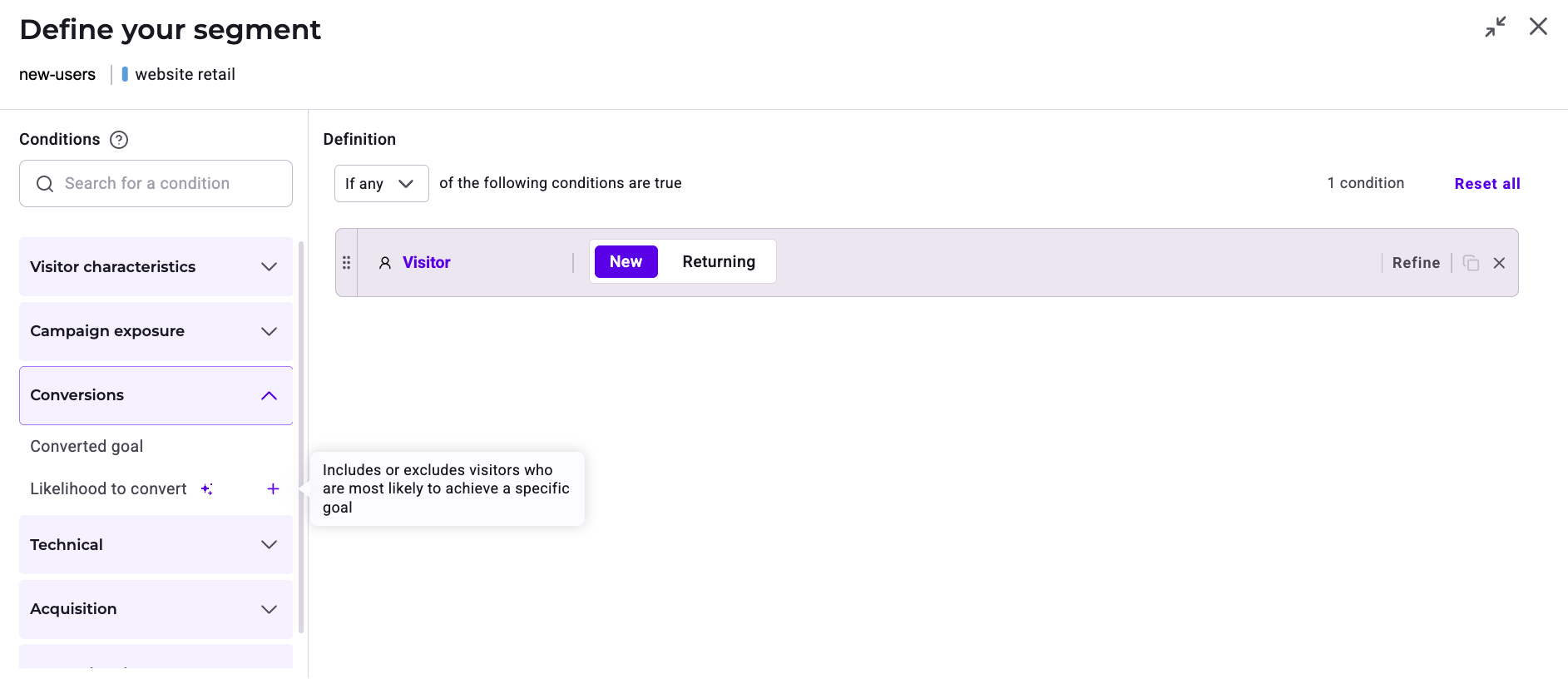
1. Select a likelihood range. You can choose one of the predefined buckets — **Very low**, **Low**, **Moderate**, **High**, or **Very high** — each representing roughly 20% of the eligible audience. Alternatively, select **Personalized** to define a custom range between **0** and **100**. A score of **0** indicates the lowest predicted conversion probability relative to other visitors, and a score of **100** indicates the highest.
2. Choose the goal on which you enabled AI Targeting.
3. Choose the trigger to associate with the prediction.
4. Click **Save** to confirm.
## AI model status badges
Every segment that uses the **Likelihood to convert** condition displays a status badge, so you can monitor the AI model's progress at a glance.
| Badge | Color | Meaning |
| --------------- | ------ | ----------------------------------------------------------------------------------------------------------------------------------------------------------------------------------------------------------------- |
| **AI Learning** | Blue | The model is collecting data. By default, it requires 7 days and 100,000 visits to complete training. During this phase, the AI condition is inactive, and the segment falls back to its other active conditions. |
| **AI Active** | Green | The model is operational and evaluates visitors in real time. |
| **AI Alert** | Orange | The learning phase is taking longer than expected, usually due to low traffic. |
### View learning progress
Hover over the **AI Learning** badge to see a tooltip with the exact training progress:
* **Time:** X of 7 days elapsed
* **Traffic:** X of 100,000 visits collected
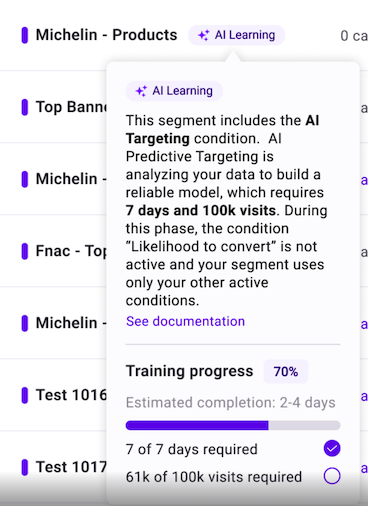
While the model is in the **AI Learning** state, the Likelihood to convert condition is inactive. The segment targets visitors using only its other active conditions.
## Monitor AI targeting status from the Experiments dashboard
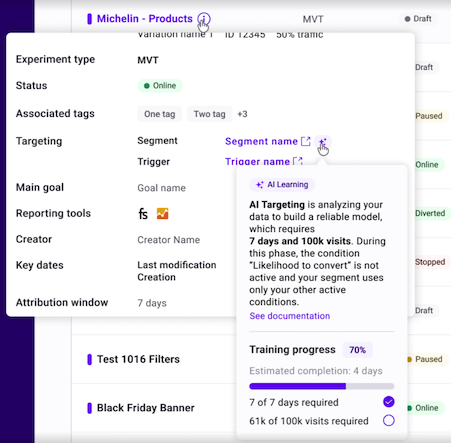
You can check an AI model's status without leaving the Experiments dashboard:
1. Hover over the information icon associated with an experiment.
2. In the pane that opens, hover over the **sparkles** icon next to the segment.
3. A tooltip displays the current AI status for that segment.
## Use the segment in a campaign
After the AI model reaches **AI Active** status, add your segment to:
* A [web experiment](../../experimentation/web-experimentation/prompt-based-experiments/pbx-build/create-a-prompt-based-experiment)
* A [personalization](../../web-personalization/set-up-and-launch-a-personalization) campaign
* A [feature experiment](../../experimentation/feature-experimentation/create-and-manage-flags/create-a-feature-flag)