> ## Documentation Index
> Fetch the complete documentation index at: https://docs.kameleoon.com/llms.txt
> Use this file to discover all available pages before exploring further.
# Manage custom data
> Find, edit, duplicate, and delete custom data from the Kameleoon Custom data dashboard using search, filter, and sort tools.
## Access the Custom data page
To access the **Custom data** page in Kameleoon, click **Settings** > **Custom data**
## Manage your custom data
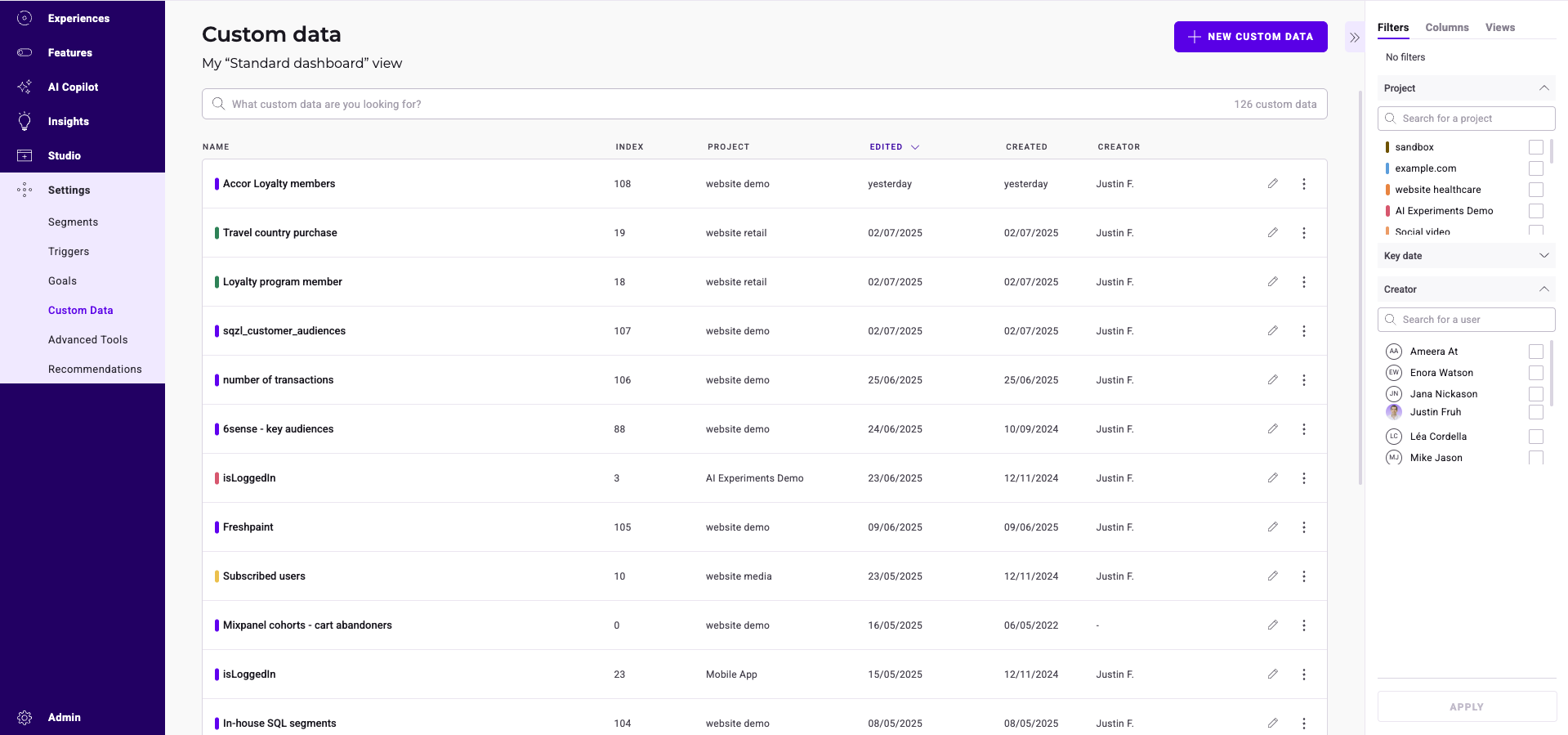
Each custom data has a card that displays its information.
### Find a custom data's index
Each custom data has a numeric **index** assigned by Kameleoon when it is created. The index uniquely identifies a custom data and is required when you reference it from code, including:
* The `CustomDataNameOrIndex` argument of `setCustomData()` in the [Activation API](../../../developer-docs/apis/activation-api-js/api-reference/api-reference#setcustomdata).
* The keys of the `metadata` object passed to `processConversion()` and `triggerGoal()` (for example, `{ 5: "Amex Credit Card" }` references the custom data with index `5`).
* SDK methods that accept a custom data index.
To view the index of a custom data:
1. Click **Settings** > **Custom data**.
2. Locate the custom data in the list. The numeric value next to its name (in the **INDEX** column) is the index used in code.
You can also sort custom data by index — see [Sort custom data](#sort-custom-data) below.
### Find a custom data
A search bar, a filter tool, and a sorting tool help you find a particular custom data.
#### Filter custom data
You can filter the displayed custom data based on several criteria:
* Project
* Key date
* Creator
##### Project
You can filter the displayed custom data based on the projects they are associated with.
Select the projects and click **Apply**.
##### Key date
You can filter the displayed custom data based on a key date: last modification or creation date.
Select a date and click **Apply**.
##### Creator
You can filter the displayed custom data based on their author.
Check the authors and click **Apply**.
#### Sort custom data
The sorting option allows you to sort your custom data based on several criteria:
* Name
* Index
* Project
* Edition date
* Creation date
* Creator
##### Name
Hover over **Name** and click the chevron to sort custom data in alphabetical (or reverse alphabetical) order.
##### Index
Hover over **linked to** and click the chevron to rank the custom data based on their index.
##### Project
Hover over **Project** and click the chevron to organize projects in alphabetical (or reverse alphabetical) order.
##### Edition date
Hover over **Edited** and click the chevron to sort custom data from newest edition to oldest or vice versa.
##### Creation date
Hover over **Created** and click the chevron to sort custom data from newest creation to oldest or vice versa.
##### Creator
Hover over **Creator** and click the chevron to sort custom data in alphabetical (or reverse alphabetical) order of their creator's name.
### Edit a custom data
To edit an existing custom data:
1. Locate the custom data's card.
2. Click **Edit** on the segment card. A pop-in window opens.
3. Enter your changes in the pop-in.
Click **Next** > **Save** to save your changes when they're complete.
### Duplicate a custom data
You can duplicate an existing custom data. To duplicate custom data:
1. Select a custom data.
2. Click the **three-dots menu**.
3. Click **Duplicate**. The Duplicate sidebar opens.
4. Click **Save** to validate the duplication.
### Delete a custom data
To delete custom data:
1. Select a custom data
2. Click the **three-dots** menu > **Delete**.
### Multiple selection
You can select multiple custom data at the same time and apply a common action to them. To select multiple custom data:
1. Select a custom data.
2. Click the **three-dots menu**.
3. Click **Select**. The custom data becomes selectable and the **Grouped actions** sidebar opens.
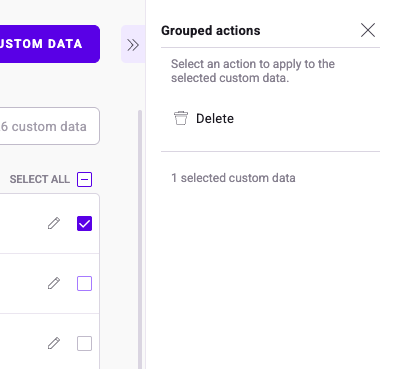
Two actions are possible:
* **Select all**
* **Deselect all**
To deselect all custom data, check the **box** next to **Select all**. To deselect all custom data, click the **box** again.