> ## Documentation Index
> Fetch the complete documentation index at: https://docs.kameleoon.com/llms.txt
> Use this file to discover all available pages before exploring further.
# Connect Kameleoon to Claude and ChatGPT
> Connect Kameleoon directly to Claude or ChatGPT chat, no IDE required.
Product managers, marketers, and support teams often need to check an experiment's status or toggle a feature flag, but the [Kameleoon MCP server](/mcp/mcp-server) targets developers working inside an IDE, putting that access out of reach for anyone outside engineering. Connecting the same Kameleoon tools directly to Claude or ChatGPT removes that barrier: any team member can act on Kameleoon data in a normal chat conversation, on web or desktop, without needing an IDE or a coding assistant. It also brings Kameleoon into the workflows you already run in your AI assistant.
Both assistants connect to the same server, `https://mcp.kameleoon.com/mcp`. Only the name differs: Claude calls it a **connector**, and ChatGPT calls it a **plugin**.
## Add the connector in Claude
1. In [Claude.ai](https://claude.ai), go to **Customize > Connectors**.
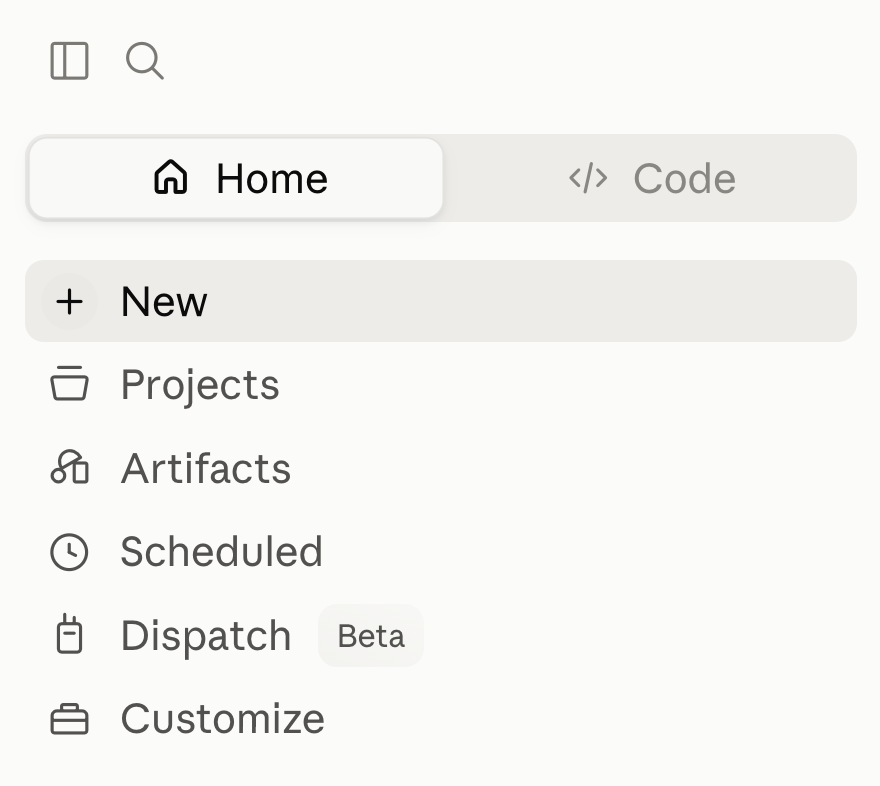 If your Claude.ai account is part of a Team or Enterprise plan, you might not see the **Add custom connector** option, and searching the connector list for "Kameleoon" won't surface it either. On Team and Enterprise plans, only the organization's Owner or Primary Owner can add a custom connector. Ask them to open **Organization settings > Connectors** in Claude.ai, add a custom connector named `Kameleoon` with the server URL `https://mcp.kameleoon.com/mcp`, and turn the connector on for the organization. Members can then connect and authorize individually, starting from step 4 below.
2. Click **Add custom connector**.
3. Enter a name (for example, `Kameleoon`) and the server URL: `https://mcp.kameleoon.com/mcp`.
4. Click **Connect**, then log in to your Kameleoon account and click **Authorize** to grant access.

5. Start a **new conversation** so Kameleoon's tools appear in the chat.
After you authorize, your browser briefly shows a confirmation screen before returning you to Claude.
If your Claude.ai account is part of a Team or Enterprise plan, you might not see the **Add custom connector** option, and searching the connector list for "Kameleoon" won't surface it either. On Team and Enterprise plans, only the organization's Owner or Primary Owner can add a custom connector. Ask them to open **Organization settings > Connectors** in Claude.ai, add a custom connector named `Kameleoon` with the server URL `https://mcp.kameleoon.com/mcp`, and turn the connector on for the organization. Members can then connect and authorize individually, starting from step 4 below.
2. Click **Add custom connector**.
3. Enter a name (for example, `Kameleoon`) and the server URL: `https://mcp.kameleoon.com/mcp`.
4. Click **Connect**, then log in to your Kameleoon account and click **Authorize** to grant access.

5. Start a **new conversation** so Kameleoon's tools appear in the chat.
After you authorize, your browser briefly shows a confirmation screen before returning you to Claude.
 ### Availability
The connector is available today as a custom connector, addable by any Kameleoon customer with an account. Anthropic hasn't yet added the connector to its official Connectors Directory, which would let any Claude.ai user discover it with one click. That listing goes through a separate, longer-running submission process.
## Add the plugin in ChatGPT
Connect the Kameleoon MCP server to ChatGPT by creating a plugin. Choose one of the following methods to create it.
**Describe the plugin to Plugin Creator:**
1. Type `@Plugin Creator` in the ChatGPT message box.
2. Enter a prompt that describes the plugin, for example: `Create a plugin called Kameleoon MCP that calls the Kameleoon MCP server at https://mcp.kameleoon.com/mcp and uses OAuth authentication`
**Start from the Plugins menu:**
1. Click **Plugins** > **Add** > **Create plugin**. ChatGPT opens a chat with Plugin Creator.
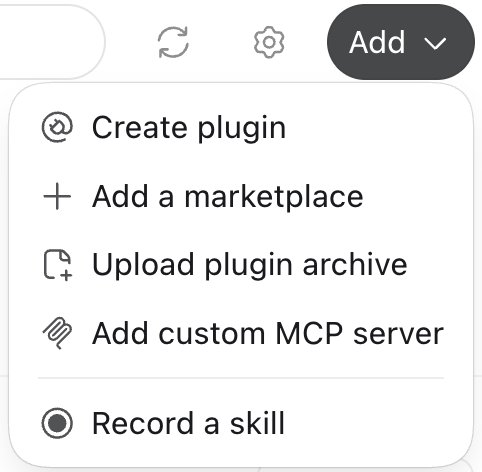
2. Enter a prompt that describes the plugin, for example: `Create a plugin called Kameleoon MCP that calls the Kameleoon MCP server at https://mcp.kameleoon.com/mcp and uses OAuth authentication`
**Add the Kameleoon MCP server manually:**
1. Click **Plugins** > **Add** > **Add custom MCP server**.
2. Enter `Kameleoon MCP` as the name of the tool.
3. Enter `https://mcp.kameleoon.com/mcp` in the **Connection** field.
4. Set **Authentication** to **OAuth**.
5. Click **Create as a plugin**.
**Ask a question with the plugin:**
1. Type `@` in the ChatGPT message box, and select your plugin by the name you gave it, for example `Kameleoon MCP`.
2. Ask a question about your Kameleoon account, for example: "What experiments are active right now?"
Custom plugins aren't verified by OpenAI. On Business, Enterprise, and Edu workspaces, a workspace admin might need to add the plugin for the organization before members can connect the plugin individually.
### Availability
The plugin is available today as a custom plugin, addable by any Kameleoon customer with an account. It exposes the same Kameleoon tools as the Claude connector.
## What you can ask
The same prompts work in Claude and in ChatGPT:
* "List feature flags for site X."
* "What experiments are active right now?"
* "Summarize the results of experiment Y."
* "Pull the code of the winning variation of experiment Z."
* "Create a feature flag called `new_search` and roll it out to 20% in production."
For the full list of tools and their parameters, see [Kameleoon MCP server](/mcp/mcp-server#available-tools).
The Kameleoon tools can also start, pause, stop, or delete experiments and feature flags. Review any action your assistant proposes before you approve it.
## FAQ
A conversation includes Kameleoon's tools only if you connected before you started it. Start a new conversation. In ChatGPT, also type `@` and select the plugin by name.
Your plan or workspace role can restrict custom connectors. In that case, ask your organization's Owner or workspace admin to add the server `https://mcp.kameleoon.com/mcp` for the organization.
The OAuth token can expire, or the authorization can stop before it finishes. Disconnect the connector or plugin, then connect again and click **Authorize**.
### Availability
The connector is available today as a custom connector, addable by any Kameleoon customer with an account. Anthropic hasn't yet added the connector to its official Connectors Directory, which would let any Claude.ai user discover it with one click. That listing goes through a separate, longer-running submission process.
## Add the plugin in ChatGPT
Connect the Kameleoon MCP server to ChatGPT by creating a plugin. Choose one of the following methods to create it.
**Describe the plugin to Plugin Creator:**
1. Type `@Plugin Creator` in the ChatGPT message box.
2. Enter a prompt that describes the plugin, for example: `Create a plugin called Kameleoon MCP that calls the Kameleoon MCP server at https://mcp.kameleoon.com/mcp and uses OAuth authentication`
**Start from the Plugins menu:**
1. Click **Plugins** > **Add** > **Create plugin**. ChatGPT opens a chat with Plugin Creator.

2. Enter a prompt that describes the plugin, for example: `Create a plugin called Kameleoon MCP that calls the Kameleoon MCP server at https://mcp.kameleoon.com/mcp and uses OAuth authentication`
**Add the Kameleoon MCP server manually:**
1. Click **Plugins** > **Add** > **Add custom MCP server**.
2. Enter `Kameleoon MCP` as the name of the tool.
3. Enter `https://mcp.kameleoon.com/mcp` in the **Connection** field.
4. Set **Authentication** to **OAuth**.
5. Click **Create as a plugin**.
**Ask a question with the plugin:**
1. Type `@` in the ChatGPT message box, and select your plugin by the name you gave it, for example `Kameleoon MCP`.
2. Ask a question about your Kameleoon account, for example: "What experiments are active right now?"
Custom plugins aren't verified by OpenAI. On Business, Enterprise, and Edu workspaces, a workspace admin might need to add the plugin for the organization before members can connect the plugin individually.
### Availability
The plugin is available today as a custom plugin, addable by any Kameleoon customer with an account. It exposes the same Kameleoon tools as the Claude connector.
## What you can ask
The same prompts work in Claude and in ChatGPT:
* "List feature flags for site X."
* "What experiments are active right now?"
* "Summarize the results of experiment Y."
* "Pull the code of the winning variation of experiment Z."
* "Create a feature flag called `new_search` and roll it out to 20% in production."
For the full list of tools and their parameters, see [Kameleoon MCP server](/mcp/mcp-server#available-tools).
The Kameleoon tools can also start, pause, stop, or delete experiments and feature flags. Review any action your assistant proposes before you approve it.
## FAQ
A conversation includes Kameleoon's tools only if you connected before you started it. Start a new conversation. In ChatGPT, also type `@` and select the plugin by name.
Your plan or workspace role can restrict custom connectors. In that case, ask your organization's Owner or workspace admin to add the server `https://mcp.kameleoon.com/mcp` for the organization.
The OAuth token can expire, or the authorization can stop before it finishes. Disconnect the connector or plugin, then connect again and click **Authorize**.