> ## Documentation Index
> Fetch the complete documentation index at: https://docs.kameleoon.com/llms.txt
> Use this file to discover all available pages before exploring further.
# Heap
> Kameleoonの実験露出イベントをカスタムイベントとユーザープロパティとしてHeapに送信し、バリエーションベースのセグメンテーションと行動分析を可能にします。
Heap統合により、訪問者が実験のターゲットになると、実験名とバリアント名を含むイベントが自動的にHeapに送信されます。
**主なメリット:**
* 開発チームに頼ることなく、Heapで新しいセグメントを構築するために追加のキャンペーン指標を自動的にキャプチャできます。
## Heapを有効化する
Heapを使用するには、最初にKameleoon Integrationsページで有効化する必要があります:
1. [Kameleoonアプリ](https://login.kameleoon.com/app)にログインします。
2. **Admin** > **Integrations** > **Install the tool** をクリックします。
3. Heapを有効化したいプロジェクトを選択します。
4. **Validate** をクリックします。

ツールのスクリプトがページにインストールされていれば、キャンペーン結果はHeapに送信されます。
ネイティブブリッジの動作を変更する必要がある場合は、[カスタムアナリティクスブリッジを作成](./custom-analytics-integration)し、[当社のGitHubリポジトリ](https://github.com/Kameleoon/custom-analytics-integrations/tree/master/heap)のHeapサンプルコードを使用できます。
## A/B実験にHeapを関連付ける
Kameleoonは、2つのHeapメソッドAPIを介してバリエーションデータをHeapに自動送信します:
* [イベント](https://help.heap.io/hc/en-us/articles/37271983537937-Events-overview)(通常、すべての実験データが1つのテーブルにグループ化されるため、データウェアハウスでの下流分析に必要です);
* [ユーザープロパティ](https://help.heap.io/hc/en-us/articles/37271957981201-Properties-overview)(これにより、Heap UIでの分析用に実験およびパーソナライゼーションセグメントの構築が簡素化されます)。
Heap UIでA/B実験結果を分析する方法を理解するには、[Heapウェブサイトのこの記事](https://help.heap.io/hc/en-us/articles/37271956241681-A-B-testing)を参照してください。
### グラフィックエディタで
IntegrationsページでHeapを有効化すると、最終化パネルの **Integrations** ステップでレポートツールとして選択できます。

### A/B実験の結果ページで
A/B実験の結果ページでレポートツールの中からHeapを選択することもできます。

### 機能フラグで
[サードパーティアナリティクス統合の管理方法](../../../experimentation/feature-experimentation/track-your-feature-experiments/managing-third-party-integrations)
## Kameleoonバリエーションを使用してHeapセグメントを作成する
以下の手順は、Eventsを使用して実験結果を分析する場合にのみ適用されます。それ以外の場合は、[この記事](https://help.heap.io/hc/en-us/articles/37271956241681-A-B-testing)を参照してください。
Heapが提供するツールを活用するために、Kameleoonバリエーションを使用してHeapセグメントを作成できます。これを行うには:
1. [Heap](https://heap.io/) にログインします。
2. **Define** > **Events** > **New Event** をクリックします。
3. 次のようにイベント情報を入力します:
* イベントに名前を付けます。
* **Source:**
* Custom
* Kameleoon
* **Filters:**
* `variationName`
* contains
* (バリエーションを選択)
4. **Define Event** をクリックします。
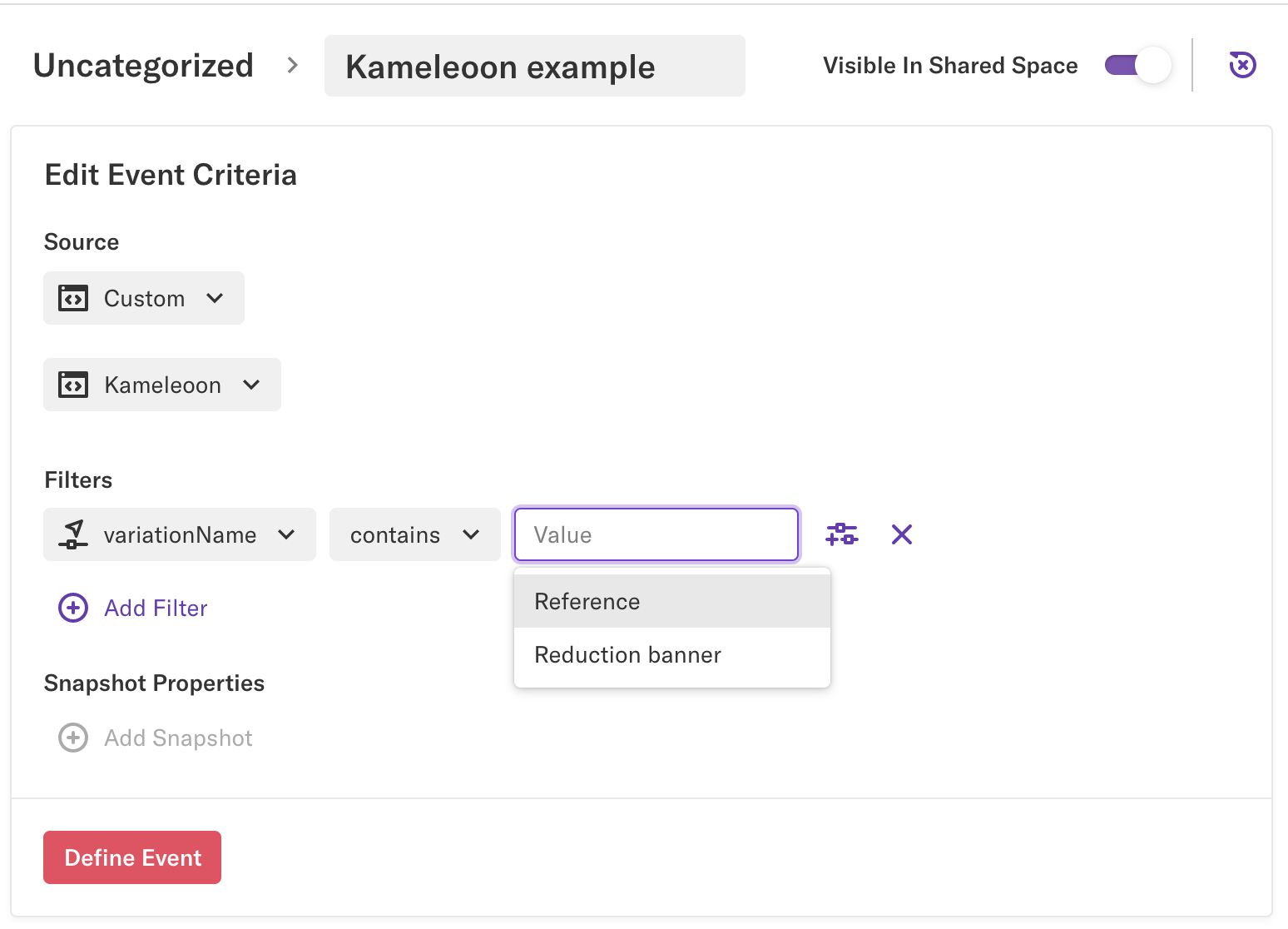
次に、このイベントに関連付けられたサマリーを見つけます。**KPIs** セクションには、目標が表示されます。
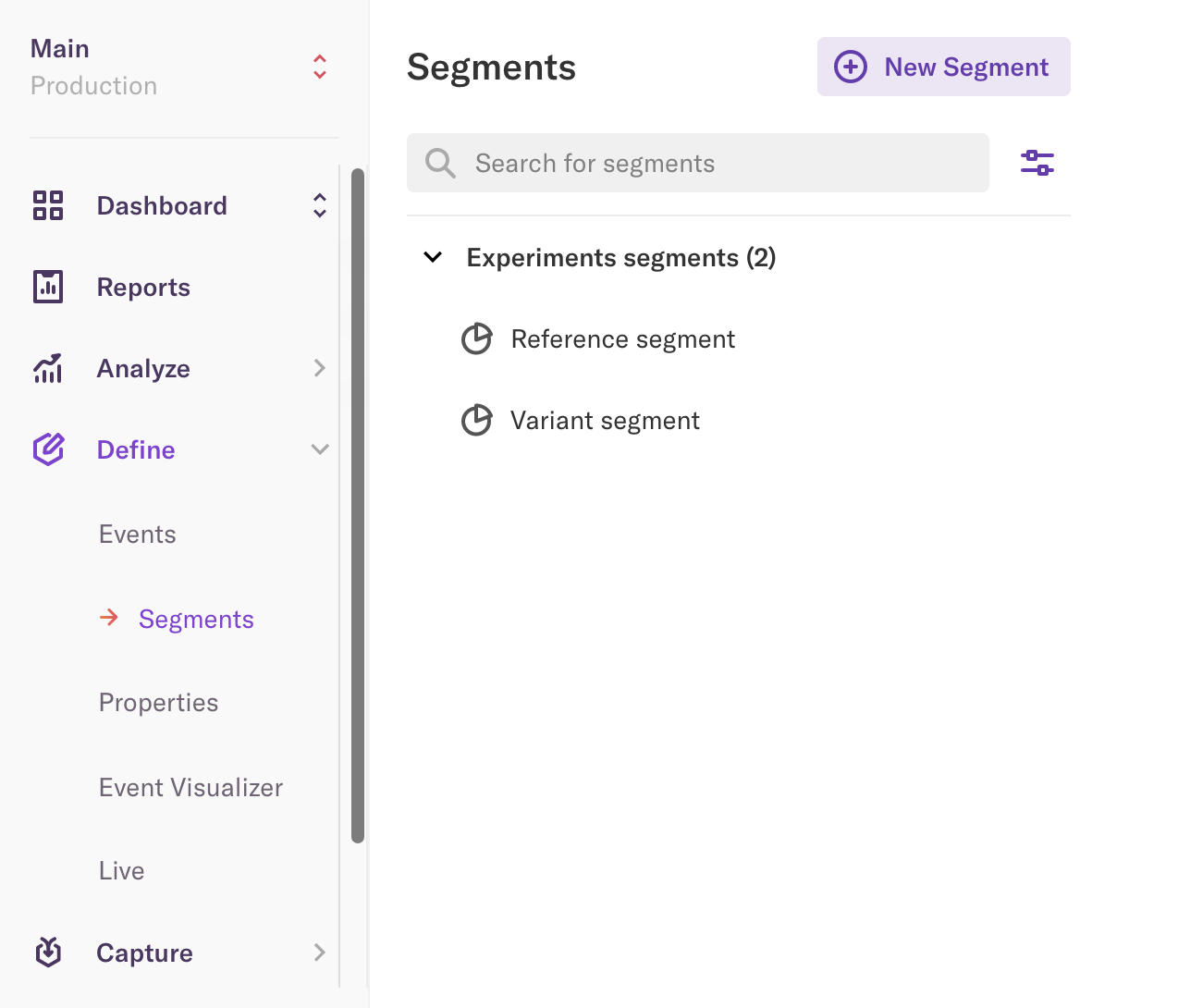
関連するセグメントは、Heap segmentsメニューで見つけられます。
## Heapでセグメントを分析する
これらのKameleoonセグメントは、すべてのHeapツールで分析できます:
* Graph
* Funnel
* Users
* Retention
* Influence
* Paths
Kameleoonバリエーションから作成されたセグメントを分析するには、クエリを生成する必要があります。これを行うには:
1. **Analyze** に移動します。
2. ツールの1つを選択します。
3. 必要な情報を入力します。
4. **Run Query** をクリックします。
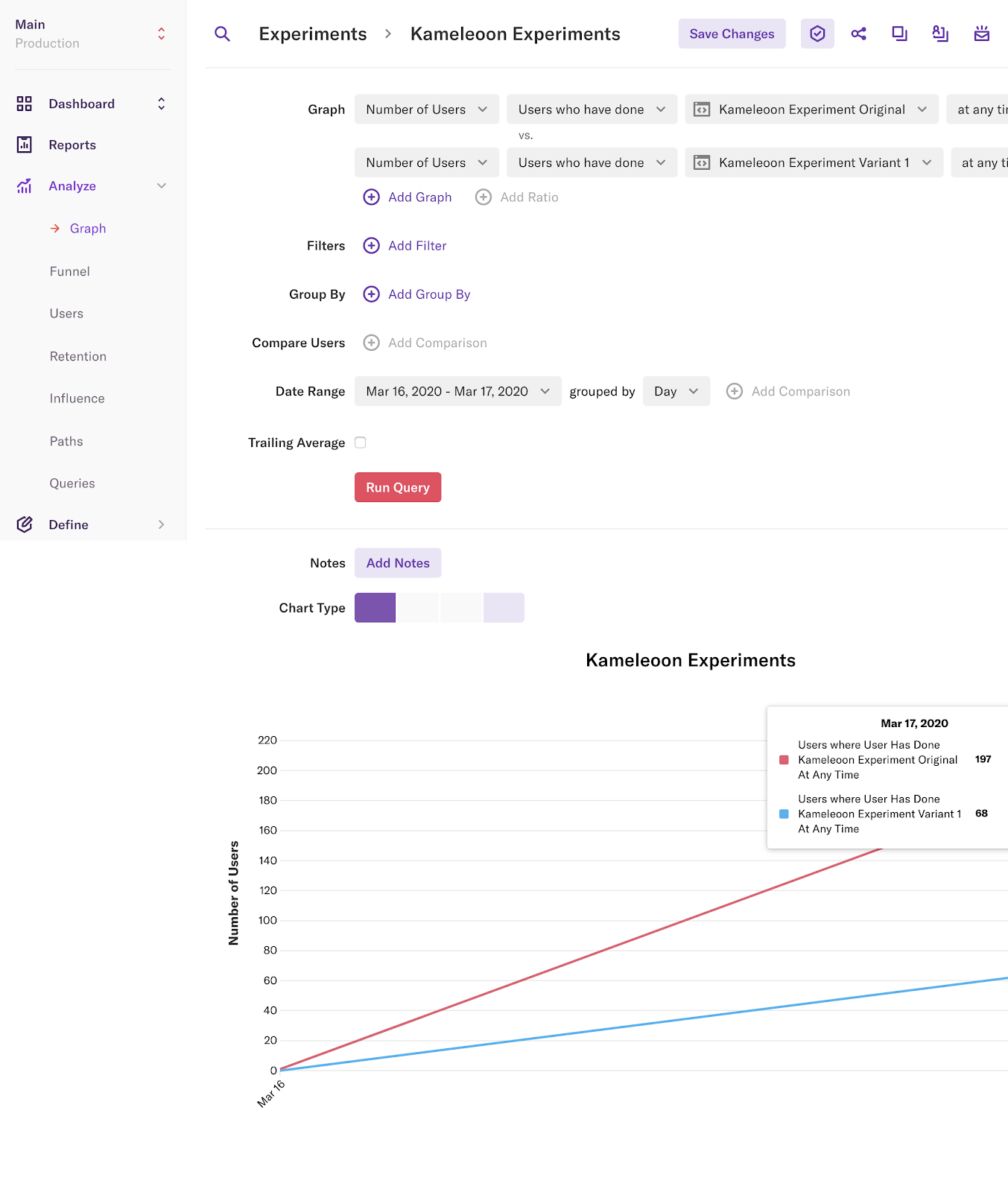
**Queries** メニューでクエリの履歴を見つけられます。
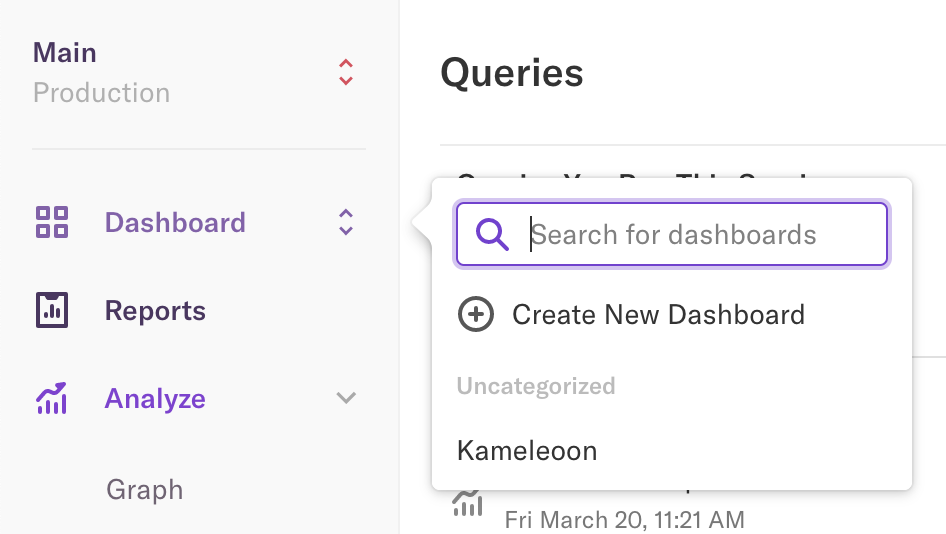
これらのクエリをダッシュボードに追加して、後でアクセスできます。