> ## Documentation Index
> Fetch the complete documentation index at: https://docs.kameleoon.com/llms.txt
> Use this file to discover all available pages before exploring further.
# コメントモード
> コメントモードを使用して、Kameleoon内で実験バリエーションに関するフィードバックを直接交換し、チームの議論を整理してコンテキスト内に保ちます。
**コメントモード**(現在ベータ版)を使用すると、Kameleoon 内で直接、チームと簡単にフィードバックを交換できます。バリエーションのレビュー、変更の議論、または問題の解決など、コメントモードは会話を整理し、特定のバリエーションに紐付けてコラボレーションを効率化します。この記事では、コメントへのアクセス、使用、効率的な管理方法を順を追って説明します。
## コメントモードへのアクセス
コメントモードにアクセスするには、モードツールバーの **吹き出しアイコン** をクリックします。
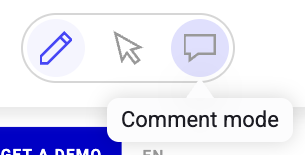
**Comments** サイドバーが開きます。
## コメントの追加
新しいコメントを追加するには:
1. **Variations** サイドバーで目的のバリエーションを選択します。
2. **Comments** サイドバーの **+Add** をクリックします。

3. テキストフィールドにコメントを入力し、**Save** をクリックします。
これでコメントが Comments サイドバーの **Active** コメントタブに表示されます。コメント数を示す視覚的なインジケーターが、関連するバリエーションまたは要素名の横に表示されます。

## Comments サイドバーでのアクション
### コメントの編集と削除
コメントを編集するには:
1. **三点リーダーメニュー** > **Edit comment** をクリックします。
2. コメントのテキストを編集します。
3. **Save** をクリックします。
コメントを削除するには:
* **三点リーダーメニュー** > **Delete comment** > **YES** をクリックします。
コメントは作成後 15 分以内、かつ返信がない場合にのみ削除できます。

### コメントへの返信
コメントに返信するには:
1. **Add reply** をクリックします。
2. テキストフィールドに返信を入力します。
3. **Save** をクリックします。
### コメントの解決
コメントを解決するには:
* コメントにマウスオーバーし、**チェックマークアイコン** をクリックします。

これでコメントが解決済みになります。解決済みのコメントは **Archived** をクリックすると表示できます。Archived タブでコメントの **チェックマークアイコン** をクリックすると、未解決に戻せます。
## 設定
Comments サイドバーではさまざまな設定を利用できます。**歯車アイコン** をクリックして利用可能な設定を表示します。

以下が可能です:
* **コメントの並べ替え**
* 新しい順、古い順、または作成者名のアルファベット順でコメントを並べ替えられます。
* **リスト表示**
* 自分がメンションされているコメントのみを表示するか、すべての返信を表示するかを選択できます。