> ## Documentation Index
> Fetch the complete documentation index at: https://docs.kameleoon.com/llms.txt
> Use this file to discover all available pages before exploring further.
# 商品レコメンデーションブロックを作成する
> ウィジェットに商品レコメンデーションブロックを追加、構成、スタイル付けして、パーソナライズされた商品提案を表示します。
本記事では、次の方法を学びます。
* レコメンデーションブロックの追加
* レコメンデーションブロックの編集
* レコメンデーションブロックの配置
## レコメンデーションブロックを追加する
レコメンデーションブロックを追加するには:
1. 左サイドバーで **Add element** をクリックします。
2. リストで **Product recommendation** > **Product recommendation** をクリックします。

3. **General** > **Block** をクリックして、ウィジェットに追加したいブロックを選択します。

**Settings** では、レコメンデーションブロックを表示するために必要な最小商品数を設定できます。また、ウィジェットが表示される商品ページから商品 ID を取得する方法も指定できます。レコメンデーションブロックでアルゴリズム「Similar products」または「Products usually purchased with this product」を使用している場合、この設定は必須です。
## レコメンデーションブロックを編集する
ブロックのサイズと位置を編集するには、**Design** をクリックします。CSS も編集できます。拡大アイコンをクリックしてカスタムコードセクションを開きます。
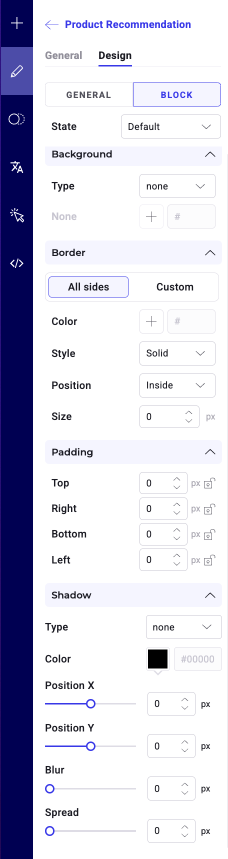
**Block** をクリックして、背景色、ボーダープロパティ、シャドウ効果などの追加設定をカスタマイズします。ブロックのホバー状態も作成できます。