> ## Documentation Index
> Fetch the complete documentation index at: https://docs.kameleoon.com/llms.txt
> Use this file to discover all available pages before exploring further.
# 実験のバリエーションに JavaScript を追加して編集する
> Automation API の Partial Update Variation エンドポイントを使用して、実験のバリエーションに JavaScript コードを注入し、更新します。
## 要件
* `access token`
Automation API には [アクセストークン](/developer-docs/apis/automation-api-rest/get-started/get-started) が必要です。
[アクセストークン取得セクション](/developer-docs/apis/automation-api-rest/get-started/get-started#1-obtain-an-access-token) の手順に従って、プログラムでトークンを取得します。
### ゴール
[作成された実験](./create-a-new-experiment) のバリエーション(`Variation 1`)を以下で更新します:
```javascript theme={null}
Kameleoon.API.Core.runWhenElementPresent("#bloc-567, .cta-button, #bloc-789", function(elements) {
document.querySelector(".cta-button, #bloc-789").innerText = "More new text";
});
```
その後、テキストを **"Updated Text"** に変更します。
コードの詳細については、[API リファレンス](/developer-docs/apis/activation-api-js/api-reference/api-reference#runwhenelementpresent) を参照してください。
この更新では、[Partial Update Variation エンドポイント](/api-reference/variation/partially-update-a-variation) を使用します。
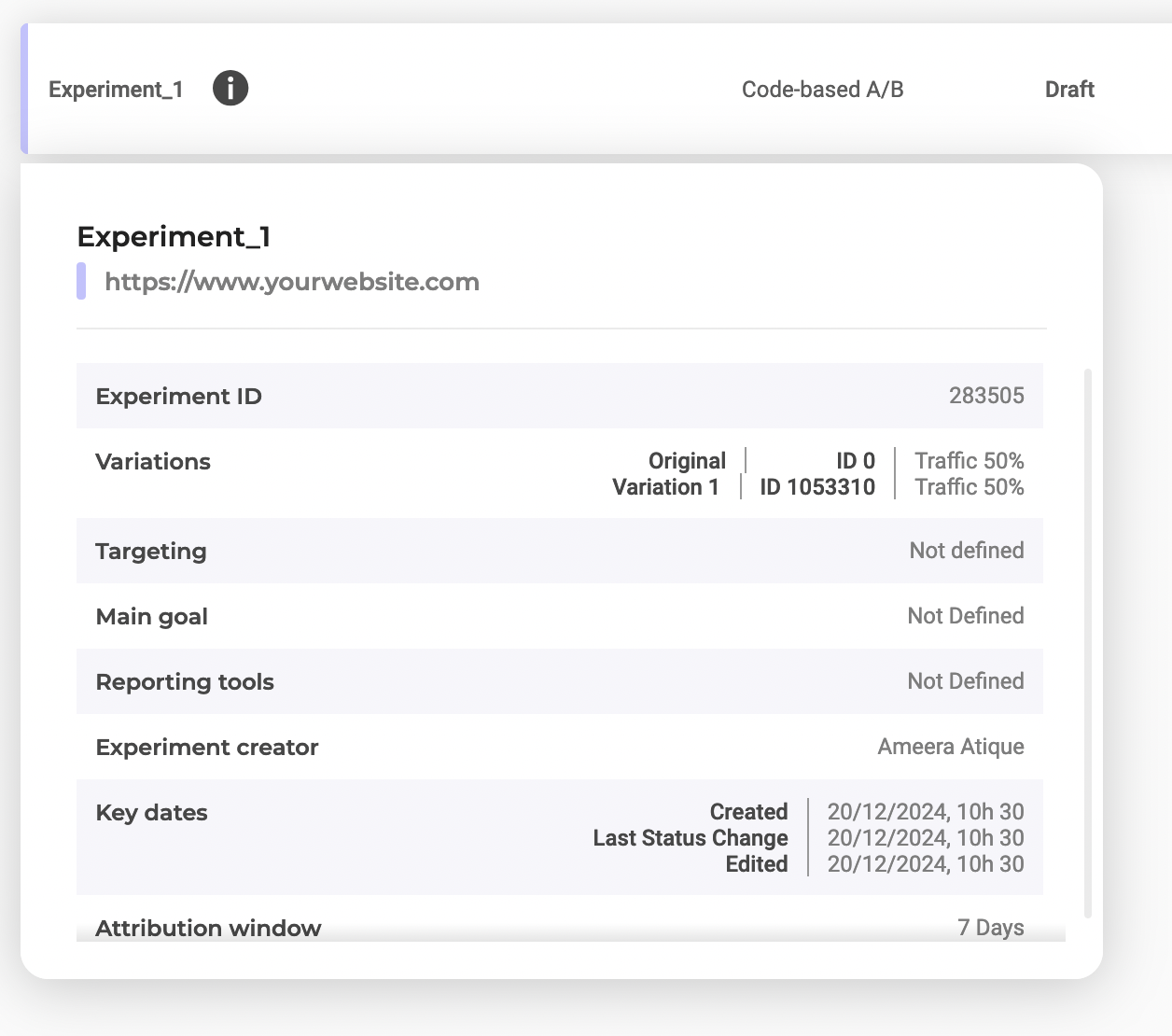
* `variationId` と `experimentId`
ダッシュボードで `Experiment_1` を選択すると ID を確認できます:
## 手順
### 1. JavaScript コードを注入する
**エンドポイント:**
```
PATCH https://api.kameleoon.com/variations/{variationId}
```
| 名前 | 型 | 説明 |
| ------------ | ------ | -------------------- |
| jsCode | String | 更新する JavaScript コード。 |
| name | String | バリエーション名。 |
| experimentId | String | コードに関連付けられた実験 ID。 |
**例:**
```bash theme={null}
curl -L -X PATCH 'https://api.kameleoon.com/variations/1053310' \
-H 'Content-Type: application/json' \
-H 'Authorization: Bearer ' \
--data-raw '{
"experimentId": 283505,
"jsCode": "Kameleoon.API.Core.runWhenElementPresent(\".cta-button, #bloc-789\", function(elements) { document.querySelector(\".cta-button, #bloc-789\").innerText = \"Text\";});"
}'
```
### 2. コードの注入を確認する
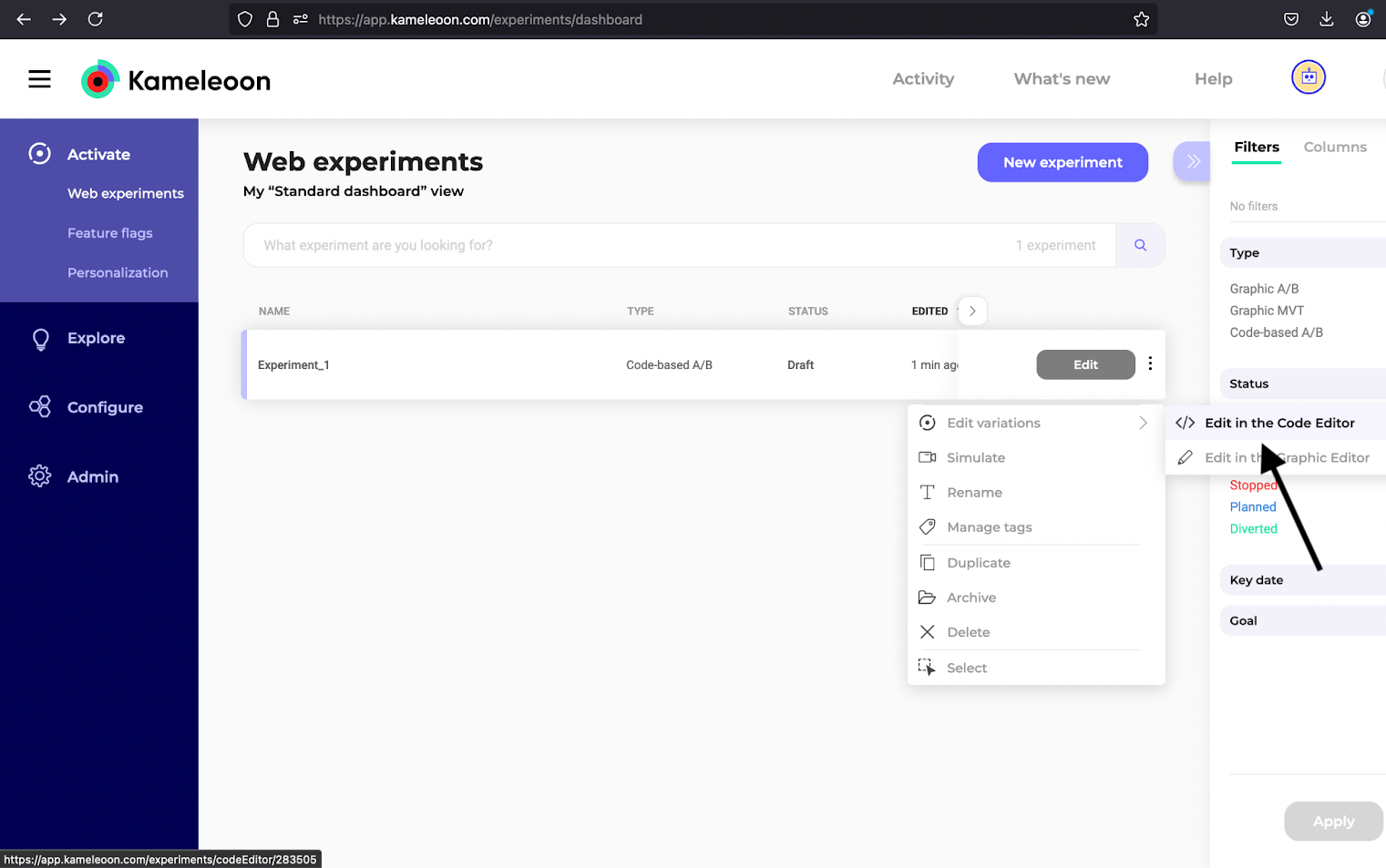
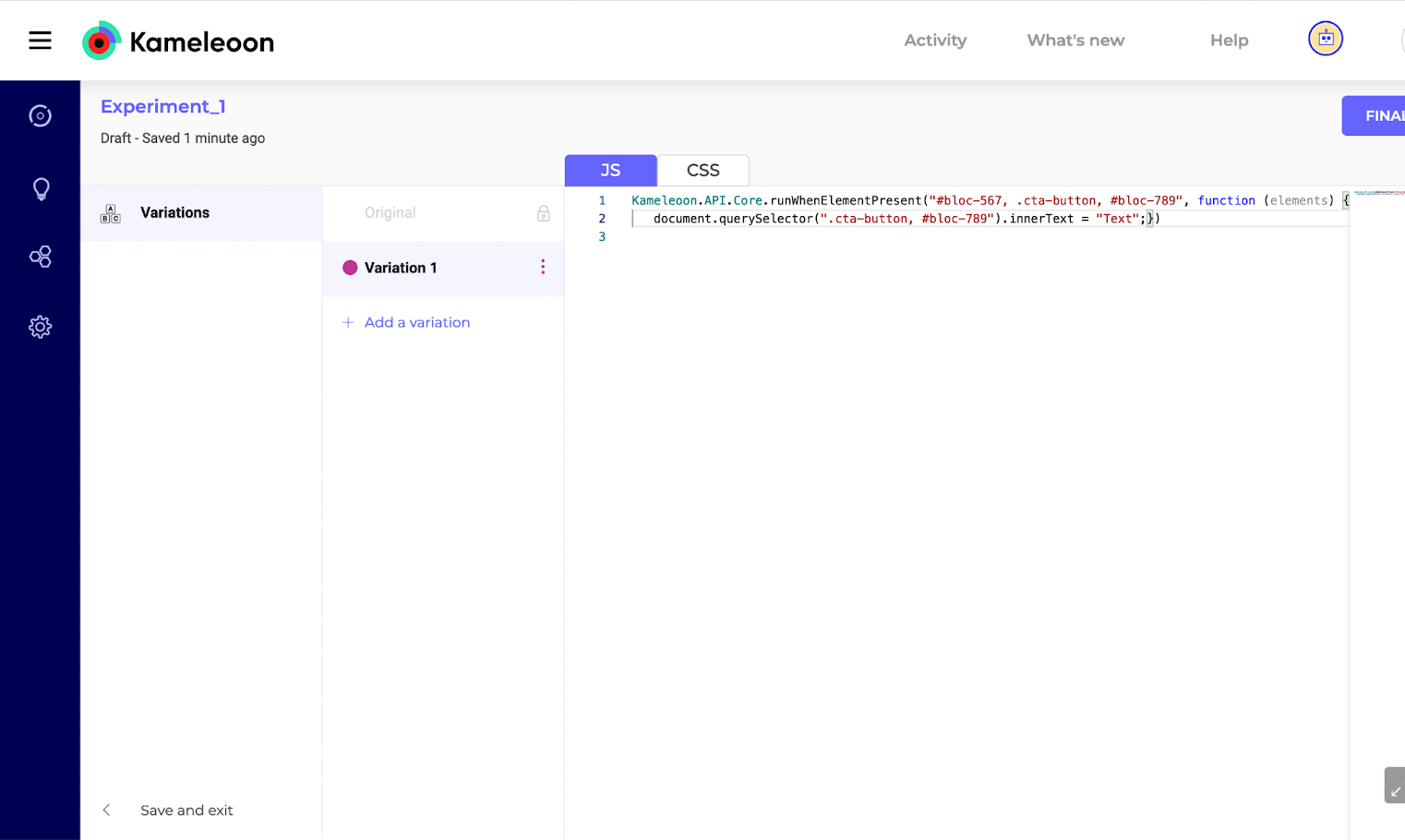
`Variation 1` のコードエディタを確認します:
### 3. コードを更新する
テキストを **"Updated Text"** に変更します:
```bash theme={null}
curl -L -X PATCH 'https://api.kameleoon.com/variations/1053310' \
-H 'Content-Type: application/json' \
-H 'Authorization: Bearer ' \
--data-raw '{
"experimentId": 283505,
"jsCode": "Kameleoon.API.Core.runWhenElementPresent(\"#bloc-567, .cta-button\", function(elements) { document.querySelector(\".cta-button, #bloc-789\").innerText = \"Updated Text\";});"
}'
```
### 4. 更新を確認する
エディタを再読み込みして更新を確認します: