> ## Documentation Index
> Fetch the complete documentation index at: https://docs.kameleoon.com/llms.txt
> Use this file to discover all available pages before exploring further.
# Headless CMS integration guide
> Integrate Kameleoon feature flags with a headless CMS to control content delivery per variation, using the React SDK as a reference implementation.
## Step 1: Defining feature variations in Kameleoon[](#step-1-defining-feature-variations-in-kameleoon "Direct link to Step 1: Defining feature variations in Kameleoon")
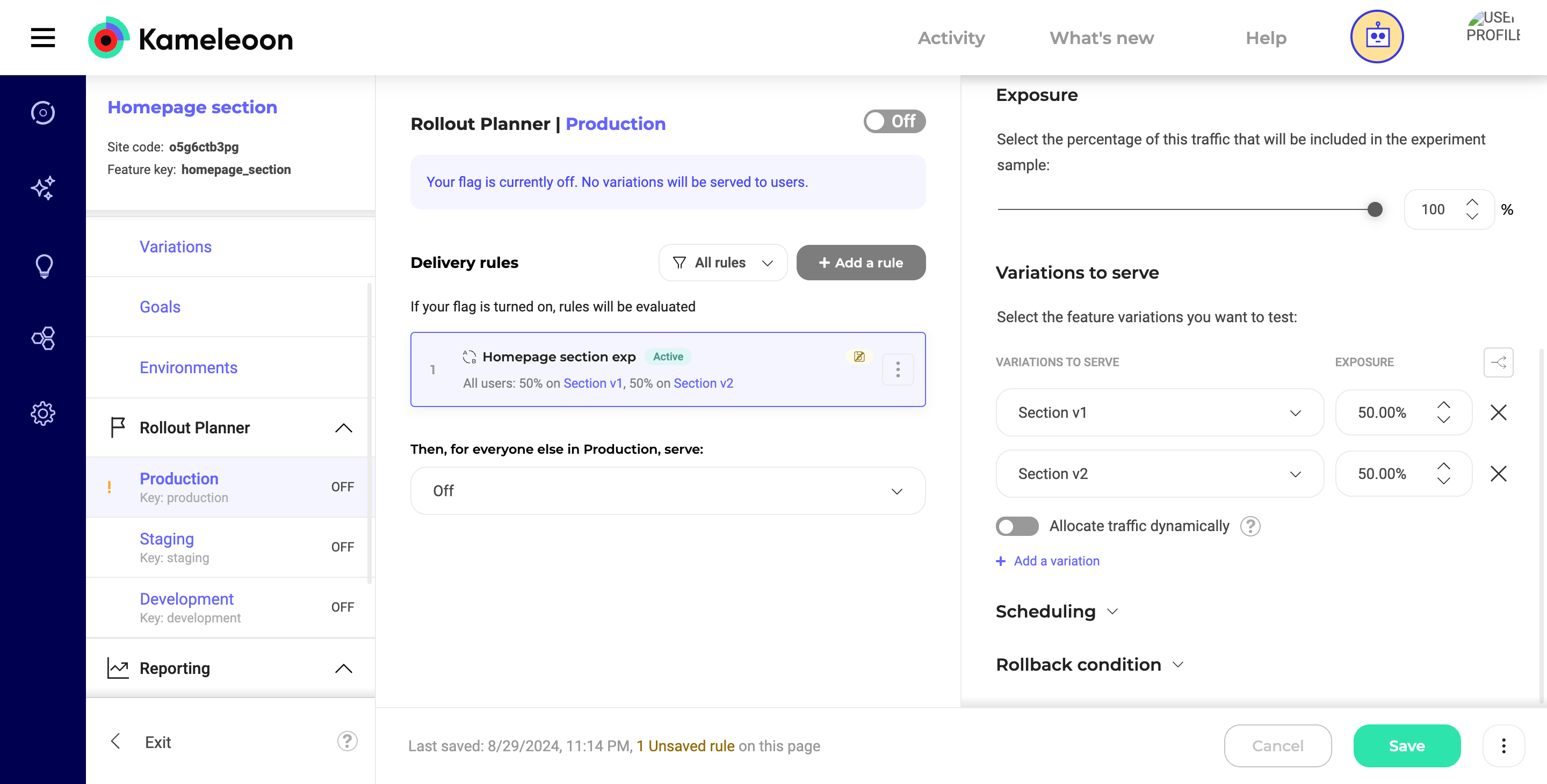
In your Kameleoon dashboard, create a new feature flag that controls which version of content is displayed. For example, if you’re experimenting with different versions of a homepage section:
* **Feature flag name:** `Homepage section`
* **Feature variation 1:** `section_v1`
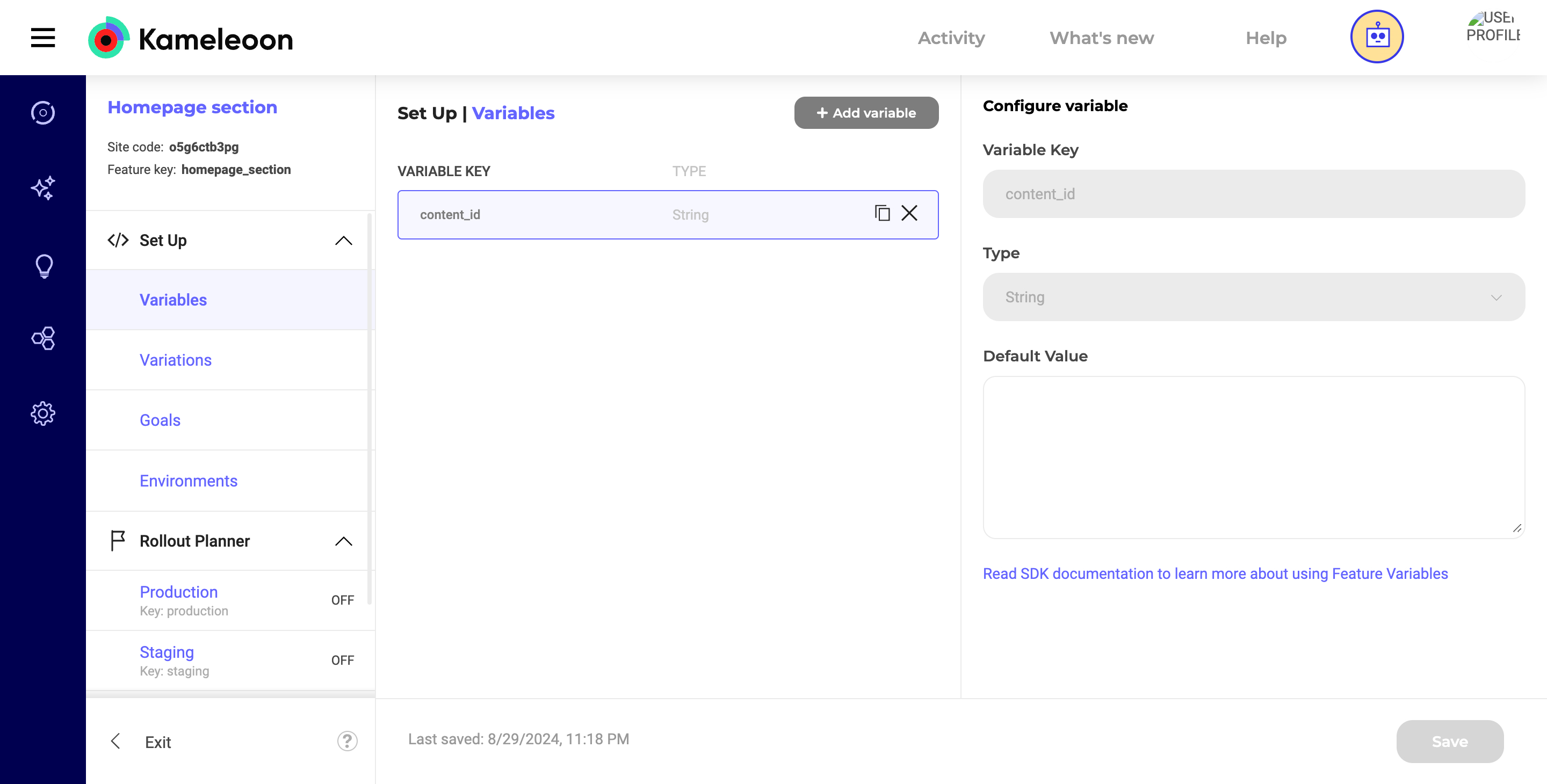
* **Feature variable 1:** `content_id = ID of the content on version 1 of your CMS.`
* **Feature variation 2:** `section_v2`
* **Feature variable 2:** `content_id = ID of the content on version 2 of your CMS.`
These `content_id` values should correspond to the unique identifiers used in your headless CMS for each content version.
### Step 2: Fetching and displaying content from CMS[](#step-2-fetching-and-displaying-content-from-cms "Direct link to Step 2: Fetching and displaying content from CMS")
Now, in your React application, use the getFeatureVariable method to retrieve the content\_id based on the active variation and use it to fetch the corresponding content from your headless CMS.
```js theme={null}
// Define the type for your CMS content
interface CMSContent {
title: string;
body: string;
}
function HomepageSection() {
const [content, setContent] = useState(null);
useEffect(() => {
const fetchContent = async () => {
try {
// Fetch the content_id for the current variation
const content_id: string = await getFeatureVariable(
'homepage_section',
'content_id'
);
// Fetch the content from your headless CMS using the content_id
const response = await fetch(`https://your-cms.com/api/content/${content_id}`);
const data: CMSContent = await response.json();
// Update the state with the fetched content
setContent(data);
} catch (error) {
console.error('Error fetching content:', error);
}
};
fetchContent();
}, []);
return (
{/* Render the content fetched from your headless CMS */}
{content ? (
{content.title}
{content.body}
) : (
Loading...
)}
);
}
export default HomepageSection;
```
**Mechanism:**
* **Fetching the content id:** The `getFeatureVariable` method retrieves the `content_id` for the active variation. The `content_id` is then used to fetch the appropriate content from the CMS.
* **Error handling:** A try-catch block is included to handle any errors during the content fetch process.
* **Rendering:** The fetched content is rendered dynamically in your React component.
### Step 3: Managing CMS content[](#step-3-managing-cms-content "Direct link to Step 3: Managing CMS content")
Ensure that each content variation in your headless CMS is associated with a unique ID. These IDs should match the `content_id` feature variables set in Kameleoon.
When users load the page, Kameleoon decides which variation to serve. Based on the `content_id`, the correct content is retrieved and displayed.
**Conclusion:** By following these steps, Kameleoon is integrated with the headless CMS using the React SDK. This setup allows for dynamic experimentation and delivery of different content variations, enhancing personalization and the effectiveness of the user experience.