> ## Documentation Index
> Fetch the complete documentation index at: https://docs.kameleoon.com/llms.txt
> Use this file to discover all available pages before exploring further.
# Create a segment to target visitors by page URL
> Create a targeting segment that filters visitors by page URL using the Automation API segments endpoint.
## Goal
Next, create a **segment** to target visitors who browse a specific URL, such as `www.site-test.com`.
See the [segment creation guide](/user-manual/assets/segments/create-a-segment) for details.
## Requirements
* `access token`
The Automation API requires an [access token](/developer-docs/apis/automation-api-rest/get-started/get-started).
Retrieve the token programmatically by following the instructions in the [obtaining an access token section](/developer-docs/apis/automation-api-rest/get-started/get-started#1-obtain-an-access-token).
* `siteId`
* Retrieve the `siteId` directly in code with the `siteCode` by calling [the get a site by code endpoint](/api-reference/site/get-a-site-by-code).
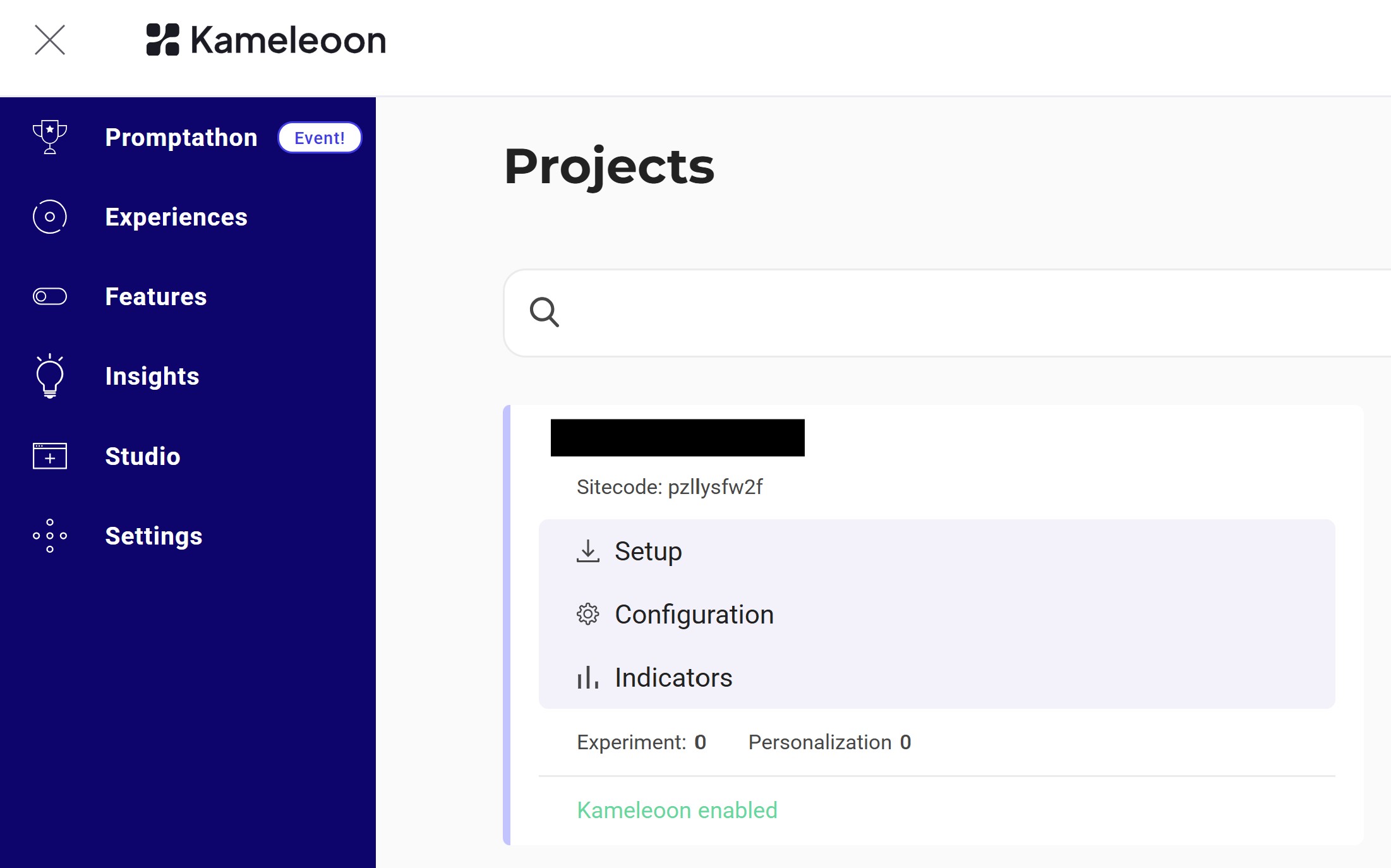
* Alternatively, log into the Kameleoon account, navigate to the bottom-left corner, and select **Projects** under the **Admin** section:
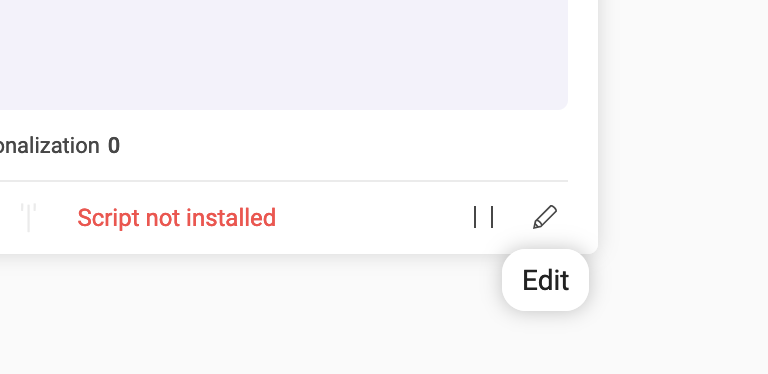
Click **Edit** on the project:
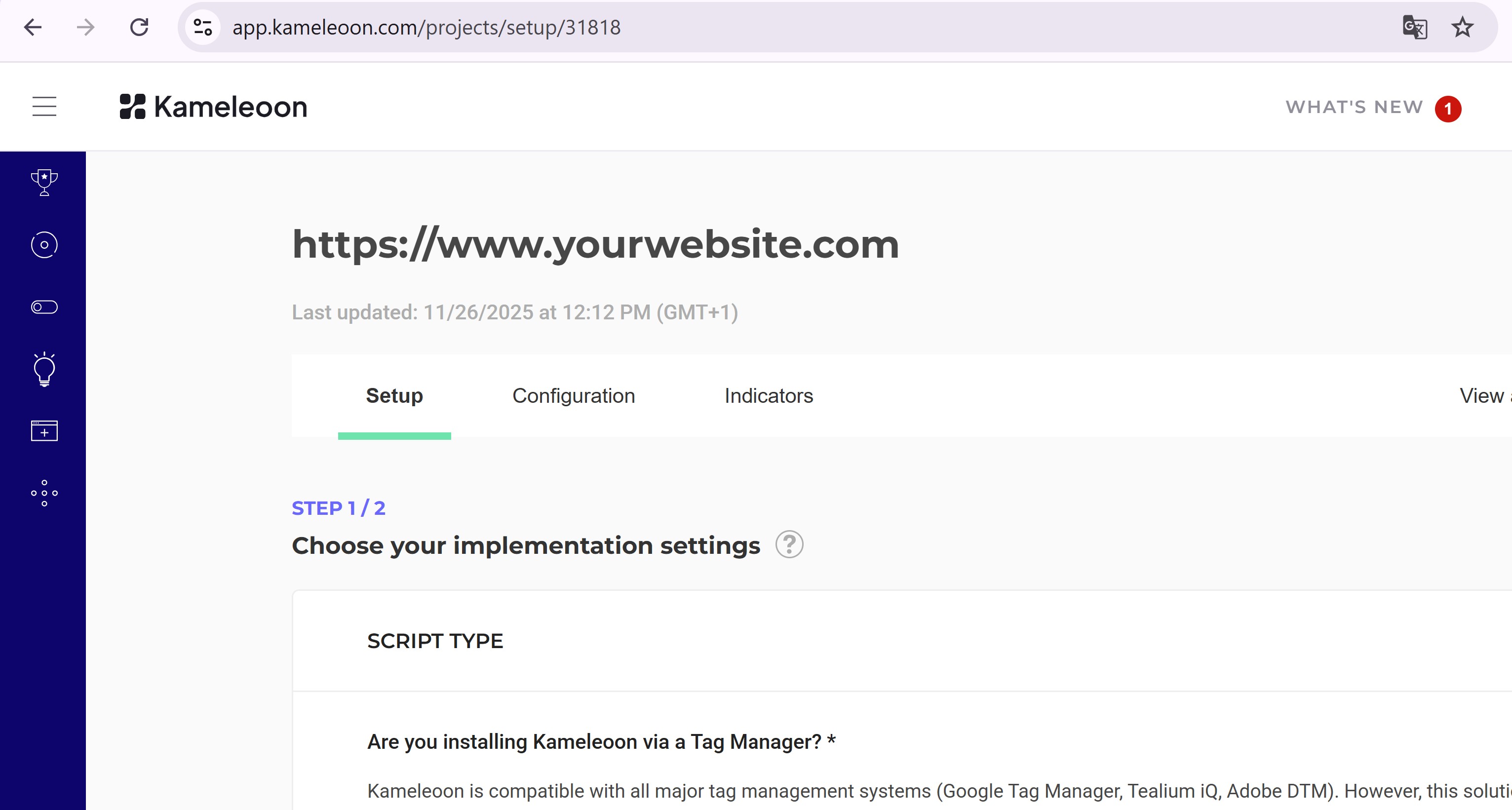
The `siteId` is the five-digit number in the URL (for example, **29353**):
## Create the Segment
**Endpoint:**
```
POST https://api.kameleoon.com/segments
```
| Name | Type | Description |
| -------------- | ------ | -------------------------------------------------------------------------------------------------------------------- |
| conditionsData | Object | Defines targeting conditions. See [API reference](/developer-docs/apis/automation-api-rest/get-started/get-started). |
| name | String | Segment name. |
| segmentType | String | Type of segment, for example, `STANDARD` for experiments. |
| siteId | String | The project’s `siteId`. |
**Example:**
```bash theme={null}
curl -L -X POST 'https://api.kameleoon.com/segments' \
-H 'Content-Type: application/json' \
-H 'Authorization: Bearer ' \
--data-raw '{
"name": "New segment",
"description": "Target by webpage",
"siteId": 29353,
"segmentType": "STANDARD",
"conditionsData": {
"firstLevelOrOperators": [true],
"firstLevel": [
{
"conditions": [
{
"targetingType": "PAGE_URL",
"weight": 1,
"url": "www.site-test.com",
"matchType": "EXACT",
"include": true
}
]
}
]
}
}'
```
***
## Create a goal for the experiment
### Goal
Goals are metrics to track campaign success.
This section creates a **Click goal** to count clicks on the `.cta-button` element.
See the [goal creation guide](/user-manual/assets/goals/create-a-goal) for more information.
### Steps
#### Create the goal
**Endpoint:**
```
POST https://api.kameleoon.com/goals
```
| Name | Type | Description |
| ----------- | ------ | ------------------------------------------------------- |
| description | String | Goal description (for example, "Number of CTA clicks"). |
| name | String | Goal name (for example, "Clicks on CTA"). |
| siteId | String | The project’s `siteId`. |
| params | Object | Includes element selectors for click tracking. |
**Example:**
```bash theme={null}
curl -L -X POST 'https://api.kameleoon.com/goals' \
-H 'Content-Type: application/json' \
-H 'Authorization: Bearer ' \
--data-raw '{
"description": "Number of times CTA button was clicked",
"hasMultipleConversions": true,
"name": "Clicks on CTA",
"params": {
"customSelectors": [
{
"mode": "CUSTOM",
"selector": ".cta-button, #bloc-789"
}
]
},
"siteId": 29353,
"status": "ACTIVE",
"type": "CLICK"
}'
```
***
## Add a goal and segment before launching an experiment
### Goal
Link the goal and segment to `Experiment_1` and activate the experiment.
### Steps
#### 1. Link and launch
**Endpoint:**
```
PATCH https://api.kameleoon.com/experiments/{experimentId}?action=ACTIVATE
```
| Name | Type | Description |
| ------------------ | ------ | --------------------------------------------------- |
| targetingSegmentId | String | Segment ID to link. |
| goals | Array | Goal IDs to link. |
| deviations | Object | Traffic allocation between control and variations. |
| mainGoalId | String | Main goal ID. |
| status | String | Experiment status (`ONLINE`, `PAUSED`, and others). |
**Example:**
```bash theme={null}
curl -L -X PATCH 'https://api.kameleoon.com/experiments/283505?action=ACTIVATE' \
-H 'Content-Type: application/json' \
-H 'Authorization: Bearer ' \
--data-raw '{
"targetingSegmentId": 298314,
"goals": [361517],
"deviations": {"origin": 0.5, "1053310": 0.5},
"mainGoalId": 361517,
"status": "ONLINE"
}'
```
#### 2. Verify launch
Refresh the dashboard.
`Experiment_1` should now display **Online** status:

***
Creation, configuration, and launch of an experiment using the Automation API are now complete.